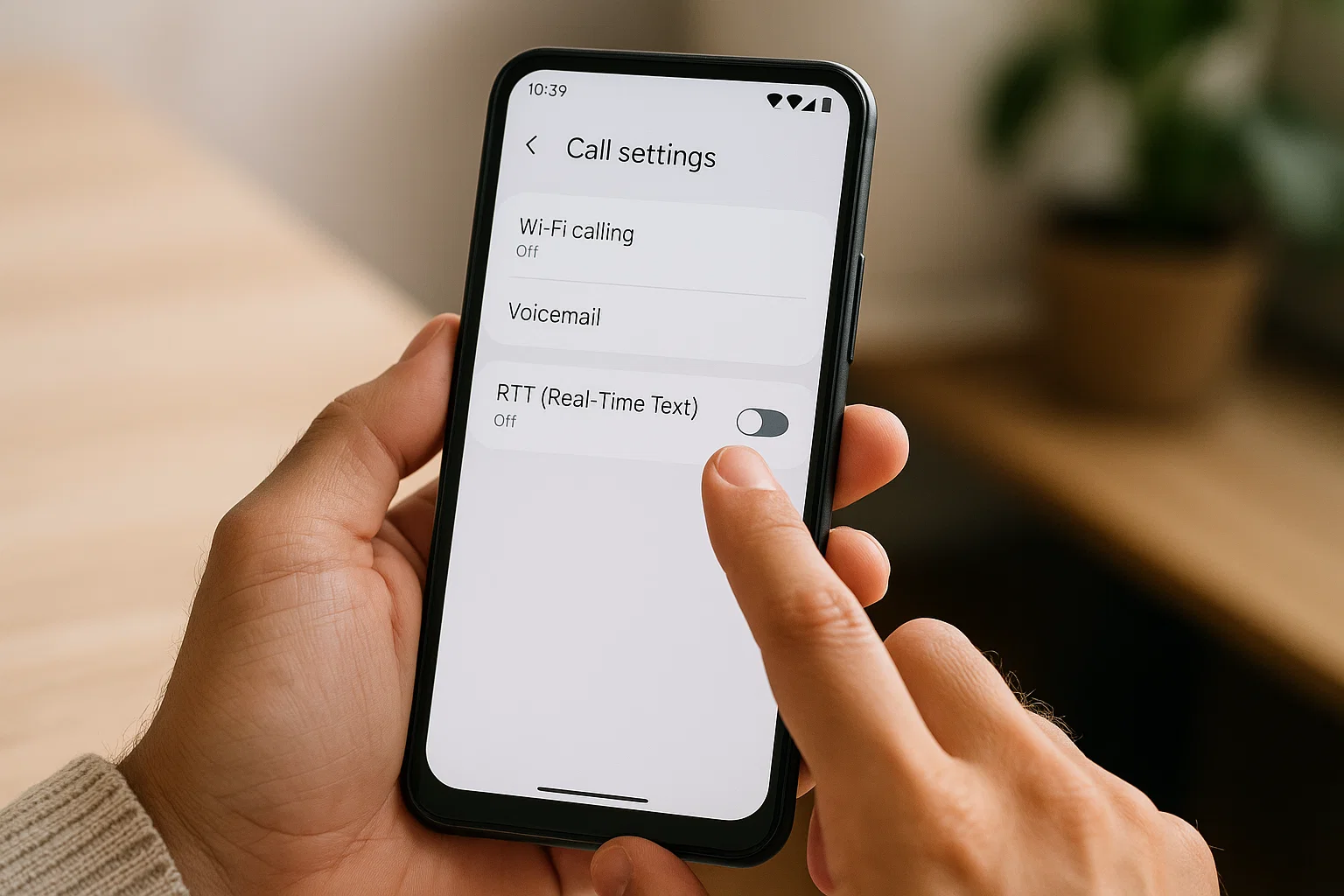
 If your phone suddenly shows RTT on calls and you have no idea why, don’t worry. You’re not the only one. I’ve helped so many people deal with this, and honestly, the frustration is real. The good news is that removing RTT doesn’t take long. Once you know where the option hides inside your settings, you can turn it off in seconds.
And here’s the quick answer, right upfront.
To remove RTT from your phone, go to your call or accessibility settings and turn off Real-Time Text. On Android, RTT lives inside the Phone app settings. On iPhone, it’s inside Accessibility > RTT. Once disabled, calls stop showing the RTT bar completely.
That’s the short version.
But if you’re tired of that annoying RTT text bar popping up, or your phone keeps thinking you’re using accessibility tools when you’re not, let’s walk through everything step by step.
We’ll look at Android, iPhone, why RTT turns on by itself, what to do when the toggle is missing, and how to fix it when it keeps coming back.
Take your time. I’ll explain everything in the calmest, clearest way possible.
What Is RTT On My Phone And Why Does It Show Up Suddenly?
RTT stands for Real-Time Text. It’s mostly an accessibility feature that lets people type messages during a call instead of talking. As you type, the other person sees the words immediately in real time.
Here’s what matters.
If RTT is on, your calls may look strange. You may see:
- A gray RTT bar on the screen
- Your voice call switching to “RTT Call”
- Keypad options disappearing
- A text box showing up during calls
Most people never turn this on manually. The feature usually appears because:
- You clicked something by mistake
- A system update enabled it
- Accessibility mode toggled on
- Your carrier forces RTT features
- Your phone synced old settings from a backup
It doesn’t mean your phone is hacked. It doesn’t mean someone is spying. It’s just one of those features that shows up randomly and annoys people.
Where Is RTT In Settings On Android?
Let me give you the fast path so you don’t waste time searching.
On almost all Android phones (Samsung, Xiaomi, Infinix, Realme, Oppo, Pixel):
Phone app → Settings → Calling accounts → Your SIM → RTT or Real-Time Text
But the exact location changes from brand to brand.
Here’s a simple table so you don’t get confused:
| Android Brand | RTT Location |
|---|---|
| Samsung | Phone app > Settings > Calling accounts > SIM > RTT |
| Xiaomi / Redmi / Poco | Phone app > Settings > Call settings > RTT |
| Oppo / Realme | Phone app > Settings > Carrier call settings > RTT |
| Pixel | Settings > Accessibility > RTT |
| Vivo | Phone app > Settings > Call > Additional settings > RTT |
If you don’t see it, don’t worry. Sometimes carriers hide the toggle. I’ll explain how to deal with that later.
How Do I Remove RTT From My Android Phone Completely?
Here’s the step-by-step method. Try these one by one.
1. Turn Off RTT From Call Settings
This is the main method, the one that works for most phones.
- Open your Phone app
- Tap the three dots (top right)
- Select Settings
- Tap Calling accounts or SIM settings
- Choose your SIM (SIM 1 or SIM 2)
- Look for RTT or Real-Time Text
- Turn RTT OFF
That should instantly remove the RTT screen during calls.
2. Disable RTT From Accessibility Settings
Some phones place RTT under the Accessibility menu.
- Go to Settings
- Tap Accessibility
- Scroll until you see RTT
- Turn it OFF
If you see RTT Preferred or TTY/RTT Mode, switch it to Off.
3. Turn Off TTY (if RTT is missing)
TTY and RTT are cousins. Sometimes disabling TTY automatically removes RTT.
- Go to Settings
- Tap Accessibility
- Look for TTY
- Select OFF
Restart your phone afterward for best results.
4. Reset Network Settings
Do this only if the RTT toggle keeps coming back.
- Open Settings
- Tap General Management (or System)
- Choose Reset
- Tap Reset network settings
- Confirm
Your mobile data, Wi-Fi, and Bluetooth info will reset but your photos and apps remain safe.
This fixes stubborn RTT issues, especially after updates.
Why Is RTT Showing On My Phone Even After Turning It Off?
If RTT keeps coming back, it usually means one of these:
- The phone updated recently
- Call settings synced from a cloud backup
- TTY mode enabled itself
- Your carrier forces RTT for emergency calls
- A second SIM slot still has RTT turned on
A simple fix is to disable RTT on both SIM cards, not just one.
If the menu keeps reappearing, don’t panic. Phones sometimes activate RTT during poor network conditions or VoLTE changes. Turning VoLTE off and on again helps too:
Settings > SIM > VoLTE > Toggle OFF and ON
How Do I Remove RTT From iPhone?
iPhone keeps RTT in a different place, and Apple hides it pretty well. But once you know where it is, turning it off is simple.
Here’s the exact path:
Settings > Accessibility > RTT/TTY > Turn OFF RTT
To make it crystal clear:
- Open Settings
- Tap Accessibility
- Scroll to Hearing
- Tap RTT/TTY
- Turn off:
- RTT
- TTY
- Software RTT
- Hardware TTY
Once these are off, your iPhone will go back to normal calling mode.
Where Is The RTT Setting On My iPhone? (2025 Update)
Based on iOS 17 and 18 updates, Apple has kept RTT under Accessibility because it’s meant for users with hearing or speech difficulties.
The exact menu name may show as:
- RTT/TTY
- RTT
- Hearing Devices → RTT
If your carrier supports full RTT calling, the menu will appear automatically. If your carrier does not support RTT, the menu may be hidden.
So don’t be surprised if you don’t see the toggle at all. That’s completely normal.
What If My iPhone Doesn’t Show the RTT Option?
Two possibilities.
1. Your Carrier Doesn’t Support RTT
Some carriers in Pakistan, UAE, India, and Bangladesh don’t support full RTT. That means the option simply doesn’t appear. No need to worry your calls are normal.
2. You Restored From an Old iPhone Backup
If your old device had RTT on, it sometimes syncs the state even when the option disappears from the menu.
Fix it like this:
- Turn on Airplane mode for 10 seconds
- Turn it off
- Restart your phone
Most of the time, it restores your calling mode to normal.
What Is RTT on Android? (Explained in Simple Words)
Let me explain this like we’re talking over chai.
Imagine you’re on a call but you don’t want to speak. Instead, you want to type your replies. And the other person sees your text instantly letter by letter without waiting for a message to send.
That’s RTT.
It’s made for:
- People with hearing issues
- People with speech problems
- Fast emergency communication
- Live text conversations during calls
But for most everyday mobile users, it’s not useful. It mostly activates by mistake.
Is RTT Safe To Keep On?
Yes. It’s completely safe.
But here’s the thing.
If you don’t use it, keeping it on can:
- Make calls look weird
- Show the RTT keyboard
- Disable your number keypad
- Cause call issues on some carriers
- Reduce voice call quality
So it’s better to turn it off unless you actually need it.
How To Know If RTT Is Turned On Accidentally?
You’ll notice a few signs during calls:
- “RTT Call” shows instead of “Voice Call”
- The call screen looks different
- Your voice audio cuts in and out
- A typing box appears
- You can’t open the keypad
If even one of these appears, RTT is active.
How To Stop RTT From Turning On Automatically?
This is a common complaint. People turn it off, and boom it comes back.
Here’s what actually fixes it:
1. Disable RTT in Both SIM Profiles
Many people disable it on SIM 1 but forget SIM 2.
2. Turn Off Wi-Fi Calling and VoLTE Temporarily
These features sometimes trigger RTT on certain networks.
3. Update Your Phone
RTT is one of those features that behaves badly on old software.
4. Force Stop the Phone App
Sometimes the Phone app caches the RTT state.
Steps for Android:
- Settings
- Apps
- Phone app
- Force stop
Then restart your phone.
RTT vs TTY: What’s the Difference?
Let me break it down in the simplest possible way.
TTY
Old technology.
Used with special machines.
Slow.
Letter-by-letter communication.
RTT
Modern upgrade.
Built into the phone.
Instant live texting.
Better accuracy.
If both are turned on together, your calls will definitely feel messed up. So turn both off unless you need them.
Why Is RTT Needed in 2025?
Even though most people don’t use RTT, it’s still important for:
- Emergency services
- Accessibility support
- Real-time communication for people with disabilities
- Language issues during calls
But again, for regular users, keeping it off gives a cleaner calling experience.
Troubleshooting: RTT Toggle Missing, Greyed Out, or Not Turning Off
Let’s tackle these one by one.
1. RTT Toggle Missing
If you don’t see the RTT option at all:
- Your carrier may have disabled it
- Your region doesn’t support RTT
- You are using Wi-Fi calling only
- A dual SIM setup is hiding the toggle
Fix:
Remove the second SIM and check again.
2. RTT Toggle Greyed Out
This usually means your phone is still on an active call or background VoLTE mode.
Fix:
Restart the phone → Toggle Airplane mode → Try again.
3. RTT Keeps Turning Back On
This is the most annoying one.
To fix it:
- Clear cache of Phone app
- Update software
- Reset network settings
- Remove third party apps that modify call behavior
- Check SIM Toolkit menus (some carriers force RTT through STK)
Quick Summary: How Do I Remove RTT From My Phone (Android + iPhone)?
Here’s the “easy-to-copy” version.
Android
Phone app → Settings → Calling accounts → SIM → RTT → OFF
OR
Settings → Accessibility → RTT → OFF
iPhone
Settings → Accessibility → RTT/TTY → Turn off RTT & TTY
Frequently Asked Questions (FAQ)
Why is RTT Showing on My Phone?
Because RTT or TTY mode was activated accidentally, through an update, or by your carrier.
Where Is RTT In Settings?
Android: Inside Phone app settings.
iPhone: Under Accessibility > RTT/TTY.
Is RTT Dangerous?
No. It’s safe. Just annoying if you don’t need it.
Can I Remove RTT Permanently?
Yes. Turn it off and reset network settings if it keeps coming back.

Muhammad Nawaz, tech guru & gaming aficionado. Your go-to for mobile news, gaming updates & expert blogging tips.