 Let’s get straight to it.
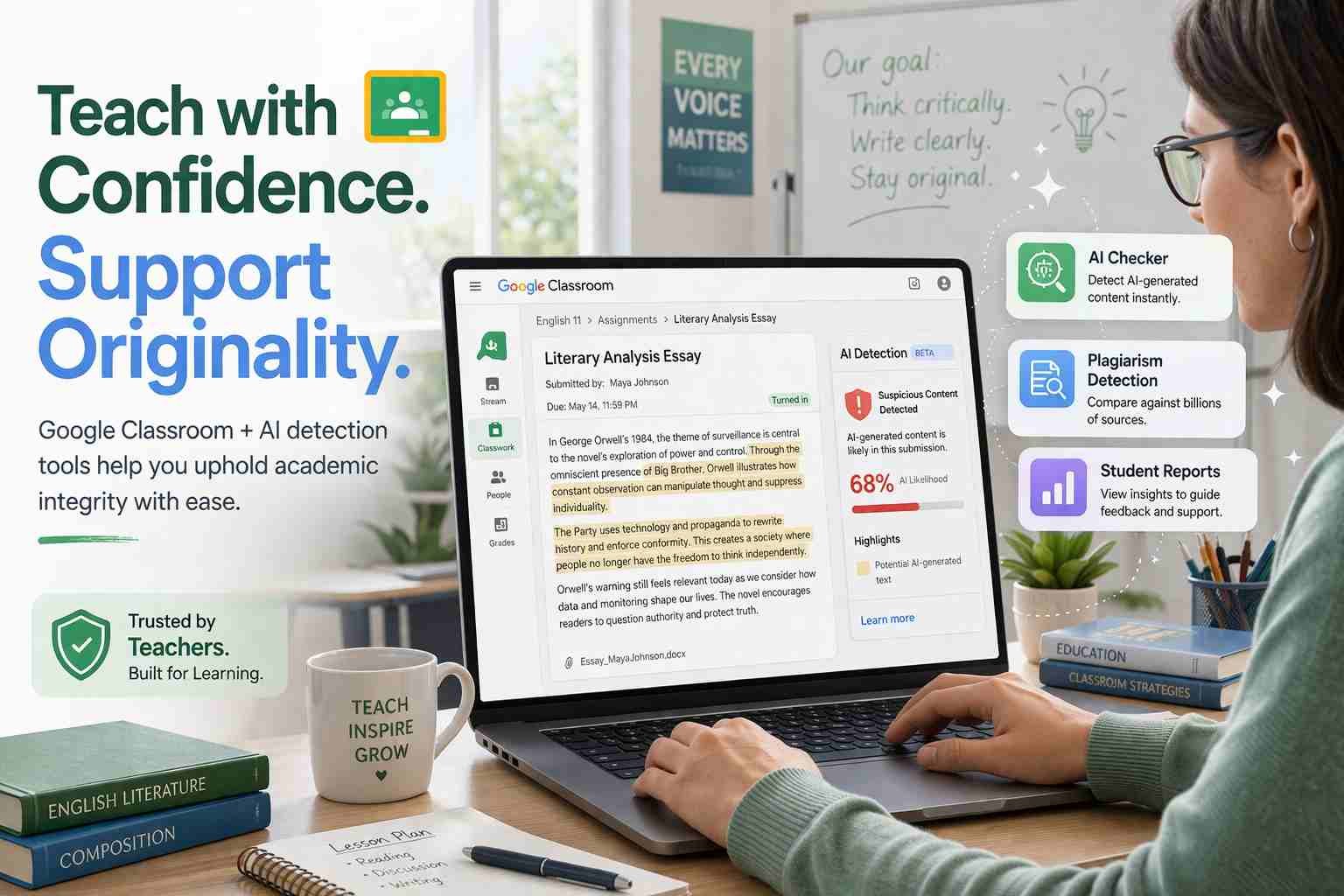
You cannot directly add an AI checker inside Google Classroom like a built-in feature. But you can use smart workarounds that actually work in real classrooms.
Most teachers today are doing one of three things:
they connect tools like Turnitin, they check content through AI detectors manually, or they combine Google Docs history with detection tools.
If you’re trying to figure this out, you’re not alone. The system isn’t fully built for AI detection yet, so you need a practical setup. Let me walk you through what actually works.
What people expect when they search this
Most people assume Google Classroom has a button like “Check AI Content.”
It doesn’t.
What Google Classroom does offer is assignment management, plagiarism reports, and integration with tools. But AI detection is still handled outside.
Here’s the gap:
- Teachers want automatic detection
- Google gives partial tools
- So you need a hybrid solution
That’s where this guide comes in.
Does Google Classroom actually have an AI checker
Short answer: No, it doesn’t.
Google Classroom has something called Originality Reports, but that only checks plagiarism. It compares text with websites and student submissions.
It does NOT detect:
- ChatGPT writing
- AI-generated essays
- Paraphrased AI content
This is where many people get confused.
AI detection is a different problem. It looks at writing patterns, not copied content.
So if you’re relying only on Google Classroom, you’re missing a big part of the picture.
So how do teachers actually detect AI work
Here’s what’s really happening in classrooms right now.
Teachers are using a mix of tools and judgment.
Some common tools:
- Turnitin AI Detection
- GPTZero
- Copyleaks AI Detector
- ZeroGPT
But tools alone aren’t enough.
Teachers also look at:
- Writing style suddenly changing
- Perfect grammar from weak students
- Lack of personal voice
- No rough drafts or edits
Honestly, the strongest signal is often Google Docs version history.
If a full essay appears instantly, that’s a red flag.
The simplest way to add AI checker to Google Classroom
Here’s the real workflow. It’s simple once you understand it.
You don’t “add” an AI checker inside Classroom.
You connect your workflow around it.
A practical setup looks like this:
- Student submits assignment via Google Classroom
- Assignment opens in Google Docs
- Teacher copies text into an AI checker
- Teacher reviews results + Docs history
That’s it.
It’s not automatic, but it’s reliable.
Using Turnitin with Google Classroom
This is the closest thing to a proper integration.
Some schools connect Turnitin directly with Google Classroom.
Here’s what happens:
- Students submit assignments normally
- Turnitin runs plagiarism + AI detection
- Teacher gets a detailed report
Why Turnitin works well:
- More accurate than free tools
- Built for education
- Combines plagiarism + AI detection
But there’s a catch.
It’s usually paid and institution-based, not for individual teachers.
Using free AI detection tools with Google Docs
If you don’t have Turnitin, this is your best option.
You simply copy student content into tools like:
- GPTZero
- Copyleaks
- ZeroGPT
It takes a few seconds per assignment.
Here’s the reality:
- Fast and easy
- Works for most cases
- But not 100% accurate
Sometimes AI-written text passes as human.
Sometimes human writing gets flagged.
So treat results as a signal, not proof.
Can you add AI checker directly into Google Docs
This is where things get a bit frustrating.
There is no official built-in AI checker in Google Docs.
Some Chrome extensions claim to help, but:
- Many are unreliable
- Some don’t work properly with Docs
- Results can be inconsistent
Right now, the safest approach is still:
manual checking + external tools
What actually works best for teachers
If I had to keep it simple, I’d use this setup:
- Google Classroom for assignments
- Google Docs for writing
- One AI detection tool (GPTZero or Copyleaks)
- Docs version history for verification
That combination covers almost everything.
The key is not relying on just one method.
Can teachers really detect cheating in Google Classroom
Yes, but not perfectly.
Let’s be honest here.
AI detection is improving, but it’s not foolproof.
Teachers can detect cheating by:
- Checking writing patterns
- Reviewing document history
- Using AI detection tools
- Asking follow-up questions
Sometimes just asking a student to explain their work reveals everything.
Common mistakes people make
A few things that cause problems again and again:
Thinking Google Classroom already detects AI
It doesn’t.
Trusting one tool completely
Even the best tools make mistakes.
Ignoring Google Docs history
This is one of the strongest clues available.
Expecting 100% accuracy
That’s not realistic right now.
What I would do if I were a teacher
I’d keep things simple and consistent.
Every assignment:
- Require Google Docs submission
- Check version history
- Run AI detection if something feels off
And most importantly, I’d design tasks that are harder to fake.
For example:
- Personal reflection questions
- In-class writing
- Oral explanations
AI struggles with those.
So where does that leave you
Here’s the truth.
There’s no single button to add an AI checker to Google Classroom.
But there is a system that works if you use the right combination.
Google Classroom handles structure.
AI tools handle detection.
You handle the judgment.
That’s how most teachers are doing it right now. And honestly, it’s working better than people expect.

Muhammad Nawaz, tech guru & gaming aficionado. Your go-to for mobile news, gaming updates & expert blogging tips.