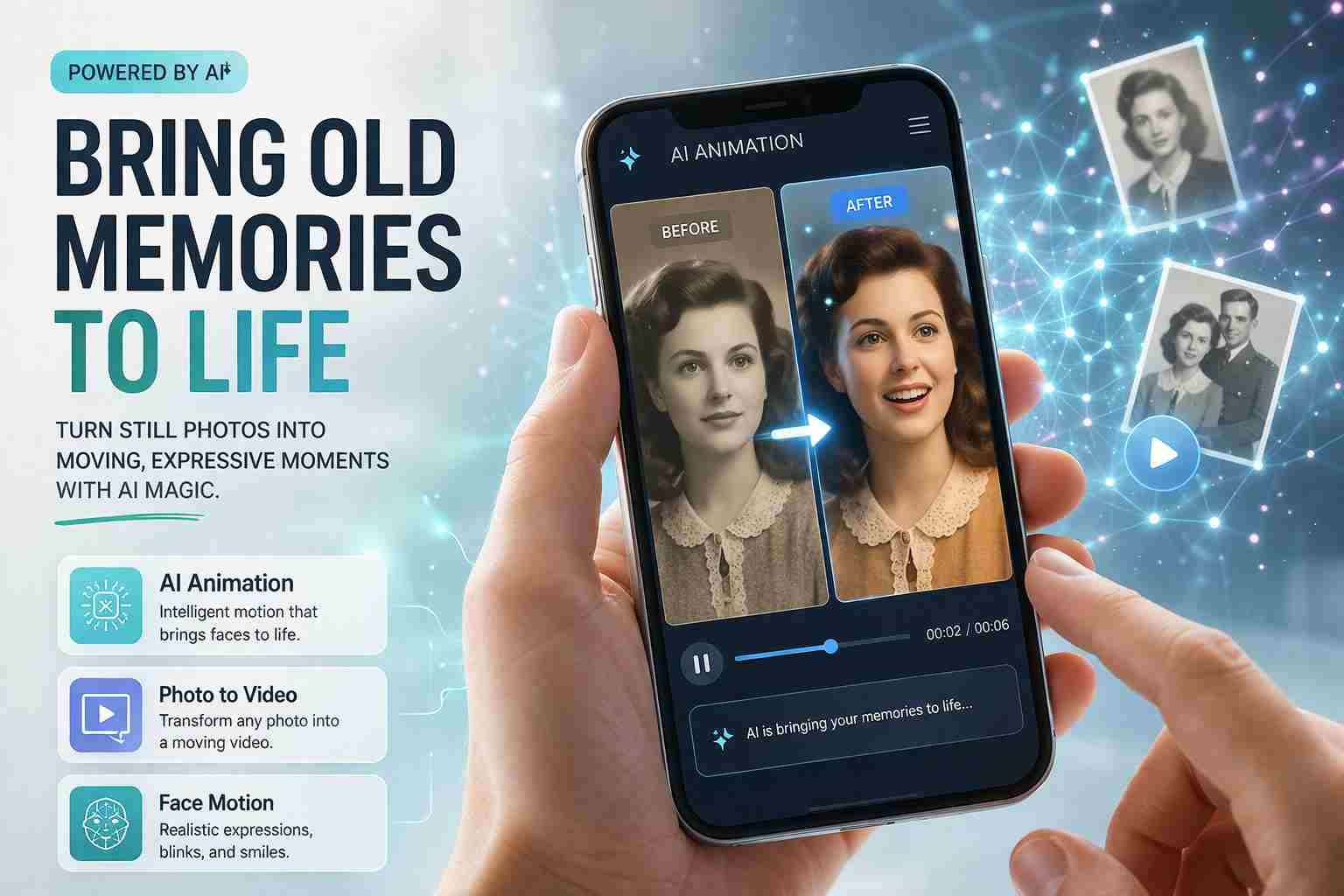
 If you’re wondering how to make pictures come to life with AI, the short answer is this: you use AI tools that add motion, facial expressions, or voice to a static image. Some tools can make a face blink and smile. Others can turn your photo into a talking video.
The good news? You don’t need editing skills, expensive software, or even an account in many cases. A few taps or clicks, and your still image starts moving like a real video.
Let me walk you through what actually works right now.
What does it really mean to bring a picture to life with AI
Bringing a picture to life means adding motion to a still image using artificial intelligence. Instead of just looking at a photo, you see it move, talk, or react.
Here’s what AI usually does:
- Adds facial movements like blinking, smiling, or head turns
- Creates lip sync based on audio or text
- Turns photos into short videos
- Animates old or black-and-white images
For example, you upload a portrait. The AI detects the face, maps it, and then generates realistic movements. That’s how those viral “talking photos” work.
The easiest way to make pictures come to life online
If you want something quick, online tools are the best starting point.
Here’s how it usually works:
You open a website, upload your image, choose an animation style, and download the result. No installation, no heavy setup.
Most tools follow this simple flow:
- Upload your photo
- Select animation style or effect
- Add voice or text (optional)
- Generate and download
The whole process takes 1 to 3 minutes depending on the tool.
Free AI tools that actually work without login
Let’s talk about real tools people are using right now. Not theory, not outdated lists.
D-ID
This one is known for creating talking AI videos.
You upload a photo, type text, and it generates a speaking video. The lip sync is surprisingly accurate.
Good for:
- Talking head videos
- Educational content
- AI presenters
Limit: Free version has credits and watermark.
Runway ML
A powerful AI tool that can animate images into videos.
It’s more advanced, but still beginner-friendly.
Good for:
- Creative video animation
- Social media content
- Visual storytelling
Limit: Free credits are limited.
Pika Labs
This one is getting popular fast.
You can turn a still image into a cinematic video with motion effects like camera movement or scene animation.
Good for:
- Dramatic video effects
- Creative content creators
MyHeritage Deep Nostalgia
This tool focuses on animating faces, especially old photos.
You upload a family picture, and suddenly the person starts blinking and smiling.
Good for:
- Old photos
- Emotional family moments
CapCut AI (Web + App)
CapCut is simple and very powerful.
It includes photo animation, face effects, and video generation tools.
Good for:
- Beginners
- Mobile users
- Social media videos
Using mobile apps to animate photos in seconds
If you’re on Android or iPhone, apps make everything faster.
Here are some solid options:
CapCut
Simple, fast, and already popular. You can animate photos and turn them into short videos easily.
Remini
Known for enhancing photos, but also offers animation features now.
TokkingHeads
Focuses on talking animations. You can animate faces and add voice.
Here’s the thing. Mobile apps are perfect if you want quick results without thinking too much about settings.
Turning a simple photo into a talking video
This is where AI gets really interesting.
You take a normal photo, and it starts speaking like a real person.
How it works:
- Upload image
- Add voice or type text
- AI generates lip sync
Some tools even let you choose voice style or language.
This is useful for:
- YouTube videos
- Business presentations
- Educational content
- Funny social media clips
What most people get wrong when using AI photo tools
Let me save you some frustration.
Most people expect perfect results on the first try. That rarely happens.
Here are common mistakes:
- Using low-quality images
- Expecting full-body animation from a face tool
- Ignoring lighting and clarity
- Not testing multiple tools
AI works best with clear, front-facing photos. If your image is blurry, the result will look weird.
Free vs paid tools what actually changes
Free tools are good. But they have limits.
Here’s the real difference:
| Feature | Free Tools | Paid Tools |
|---|---|---|
| Quality | Good | Better and sharper |
| Watermark | Usually yes | No |
| Speed | Slower | Faster |
| Export options | Limited | Full control |
If you’re just testing, free tools are enough.
If you’re creating content regularly, paid tools save time and improve quality.
Best method if you want realistic results
If you want something that looks real, not fake, try this approach:
Start with a clear, high-quality photo. Then use a face animation tool like D-ID or MyHeritage. After that, enhance or edit the video in CapCut.
This combination works well because:
- One tool handles animation
- Another improves presentation
Simple, but effective.
Can you animate old family photos or historical images
Yes, and honestly, this is one of the most powerful uses of AI.
You can take a 50-year-old photo and make it move. The person smiles, blinks, and feels alive again.
Tools like MyHeritage are designed for this.
People use it for:
- Family memories
- Tribute videos
- Historical storytelling
Just make sure the photo is clear. Even old images work better if slightly enhanced first.
So what should you try first
If you’re just starting, don’t overthink it.
- Want something simple? Try CapCut
- Want talking videos? Use D-ID
- Want emotional animations? Go with MyHeritage
- Want creative effects? Try Runway or Pika
Start with one tool. Test it. Then move forward.
That’s usually how people figure out what works best for them.

Muhammad Nawaz, tech guru & gaming aficionado. Your go-to for mobile news, gaming updates & expert blogging tips.