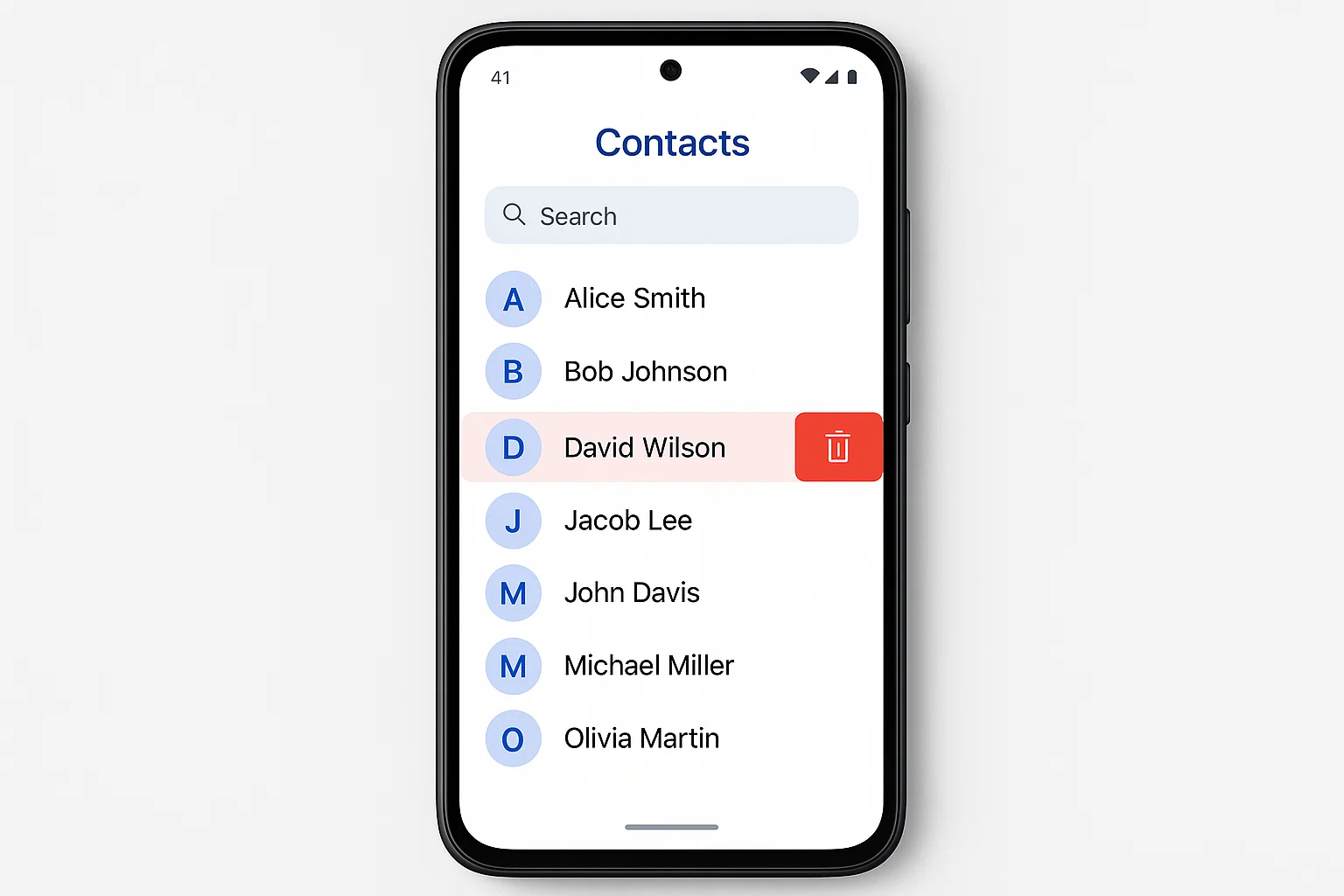
 If you’re trying to figure out how to remove contacts from phone Android, here’s the simple answer: open your Contacts app, select a contact, tap delete, and confirm. For multiple or all contacts, you can use the “Select multiple” option or manage them through your Google account.
I’ve tested this on different Android phones (Samsung, Xiaomi, Infinix), and honestly, the steps are almost the same everywhere. So whether your phone is new or a few years old, this guide will work for you.
Why would you want to remove contacts from your phone?
Let’s be real… most of us don’t even remember saving half of the contacts in our phone.
You might have:
- Old numbers that don’t work anymore
- Spam contacts saved accidentally
- Duplicate contacts (super annoying)
- Numbers from years ago you’ll never call again
Cleaning your contacts list makes your phone faster and easier to use. Plus, it just feels good to see a clean list.
How do I remove contacts from my phone Android (single contact)?
The easiest method. Works on almost all Android phones.
Step-by-step:
- Open Contacts app
- Find the contact you want to delete
- Tap on the contact
- Tap the 3 dots (menu)
- Select Delete
- Confirm deletion
That’s it.
Simple, right? But here’s the catch… this only deletes one contact at a time.
How to remove contacts quickly (multiple contacts at once)?
If you have dozens of useless contacts, deleting one by one will drive you crazy.
Here’s the faster way:
Quick method:
- Open Contacts app
- Tap and hold on a contact
- Select multiple contacts
- Tap Delete icon
- Confirm
Some phones call this “Select mode” or “Bulk delete.”
Honestly, this is the method I personally use. Saves a lot of time.
How can I delete all my contacts at once on an Android phone?
Now this is where things get interesting.
Android doesn’t always give a direct “Delete All” button. But there’s a smart workaround.
Method 1: Using Google Contacts (best way)
If your contacts are synced with Google:
- Go to contacts.google.com
- Login with your Gmail
- Click Contacts
- Press Ctrl + A (select all)
- Click Delete
Done. All contacts gone in seconds.
And yes, they will also disappear from your phone automatically.
Method 2: From phone settings (some devices)
On some phones like Samsung:
- Open Contacts
- Go to Manage Contacts
- Tap Delete multiple
- Select all
- Delete
Not all Android phones have this option though.
How do I get rid of all my contacts permanently?
Here’s something many people don’t realize.
Even after deleting contacts, they can come back if sync is ON.
To permanently remove contacts:
- Delete contacts from Google (as above)
- Go to Settings → Accounts → Google
- Turn off sync OR resync after deletion
Otherwise, your phone may re-download deleted contacts.
Yeah… that’s why sometimes contacts “magically” return.
Why are deleted contacts coming back again?
This is a common headache.
Here’s what’s usually happening:
| Problem | Reason | Fix |
|---|---|---|
| Contacts reappear | Google sync is ON | Delete from Google account |
| Duplicate contacts | Multiple accounts synced | Remove extra accounts |
| SIM contacts showing | Contacts saved on SIM | Delete from SIM storage |
Once you fix the source, the problem stops.
How to remove contacts stored on SIM card?
Sometimes your contacts are not even in your phone… they’re in your SIM.
Steps:
- Open Contacts app
- Go to Settings → Import/Export
- Choose SIM contacts
- Select and delete
Different phones show this differently, but the idea is the same.
Real-life example (you’ll relate to this)
I once had over 800 contacts on my phone.
Half of them were:
- Delivery riders
- Old classmates
- Random shopkeepers
Finding one important number felt like searching for a needle in a haystack.
After cleaning everything using Google Contacts, I reduced it to 120 contacts.
Phone felt cleaner. Searching got faster. Life got easier.
Quick tips to manage contacts better
Instead of cleaning again and again, do this:
- Save contacts only in Google account
- Avoid saving duplicate numbers
- Delete useless contacts immediately
- Turn OFF sync for accounts you don’t use
Small habits… big difference.
So what should you do now?
If your phone feels messy, don’t ignore it.
Start small. Delete a few contacts today. Then remove the rest in bulk.
And if you really want a fresh start… just wipe everything using Google Contacts.
Trust me, once your contact list is clean, you’ll notice the difference immediately.

Alexandra Smith: All things tech, News, Social Media Guide, and gaming expert. Bringing you the latest insights and updates on Mobiledady.com