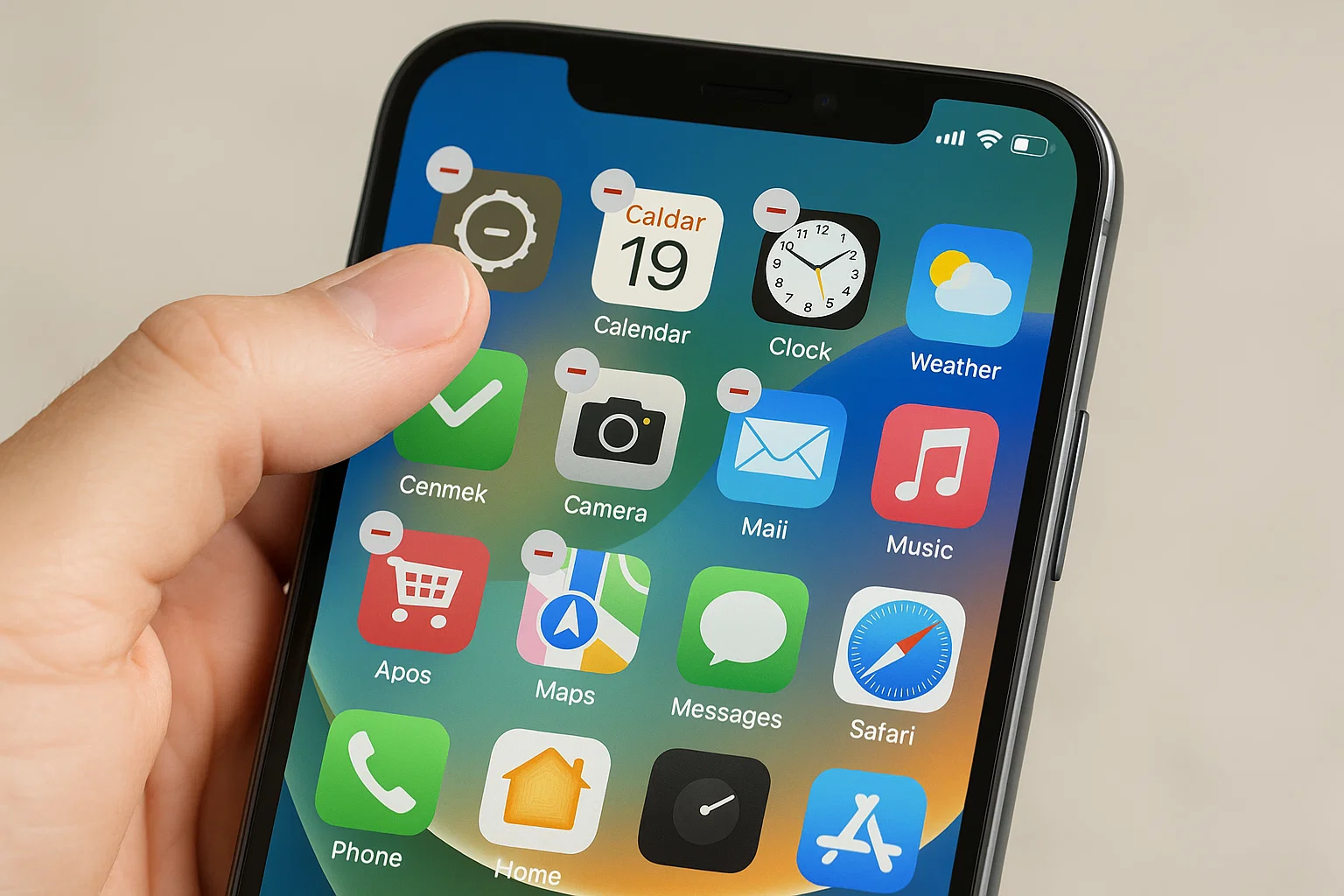
 Custom icons look fun at first, but they can fill your Home Screen, slow things down, and create duplicate icons through Shortcuts. If you want to reset your Home Screen back to the original clean layout, the quick answer is simple:
You can remove custom app icons on iPhone by deleting the Shortcuts you created, removing the custom icons from your Home Screen, and resetting your Home Screen layout if needed.
That’s the whole fix, and every method you need is below with clear steps.
Let’s break each one down.
What Are Custom App Icons on iPhone and Why Do They Appear?
Direct Answer:
Custom app icons appear when you use the Shortcuts app to create a custom look. These icons don’t replace real apps they only act as launch shortcuts.
Expansion:
People create custom icons using themes, Pinterest designs, or packs from Instagram designers. But iOS doesn’t let you replace the original icon. So every time you make custom icons, the iPhone places an extra shortcut icon on the Home Screen. That means:
- You have two icons for the same app
- The custom one works like a shortcut
- The real one stays hidden in App Library
- Launch speed becomes slower
- Homescreen gets messy
If you’re tired of the clutter, removing these icons is easy.
How to Remove Custom App Icons on iPhone (Fastest Fix)
Direct Answer:
The fastest way is to delete the shortcut icons you created. Long-press the custom icon and choose “Delete Bookmark”.
Steps
- Press and hold the custom icon.
- Wait for apps to jiggle.
- Tap Delete Bookmark or Delete Shortcut.
- The original icon remains safely in App Library.
This is the simplest fix and you can repeat it for every custom icon.
How to Change App Icons Back to Normal on iPhone?
Direct Answer:
To change icons back to the original look, you must remove custom icons and use the official app icons from App Library.
Steps
- Delete the custom icon (shortcut).
- Swipe left until you reach App Library.
- Search for the app.
- Hold the real app icon.
- Tap Add to Home Screen.
Your original iOS icon is restored instantly.
Example:
If you used a pink WhatsApp icon, removing it won’t delete WhatsApp. The real WhatsApp is still inside App Library. You just need to bring it back.
How Can I Remove Unwanted App Icons From the Screen on My iPhone?
This question includes unwanted icons, not only custom ones.
Direct Answer:
You can remove unwanted icons by deleting the app, hiding it from the Home Screen, or removing the shortcut that created it.
Options You Have
| Problem | Fix |
|---|---|
| Custom icon | Delete Shortcut |
| App you don’t use | Delete app |
| Icon disturbing layout | Remove from Home Screen |
| Duplicate icon | Reset Home Screen layout |
Steps to Remove an Unwanted Icon
- Long-press the icon.
- Tap Remove App.
- Choose:
- Delete App (removes app completely)
- Remove from Home Screen (hides icon but keeps app)
This helps keep your Home Screen clean.
How Do I Delete Custom Shortcuts on My iPhone?
You may want to remove custom app icons but keep the custom actions clean too.
Direct Answer:
Delete custom shortcuts from the Shortcuts app if you don’t want them anymore.
Steps
- Open Shortcuts.
- Tap All Shortcuts.
- Press and hold the Shortcut you created.
- Select Delete.
This removes the shortcut entirely including the Home Screen icon attached to it.
How Do I Get Rid of Unwanted Icons on iPhone Quickly?
If your screen has too many random icons (custom shortcuts, app clips, theme packs), the fastest method is:
Reset Home Screen Layout
Direct Answer:
Resetting returns every icon to its original place and removes all custom icons instantly.
Steps
- Open Settings.
- Go to General.
- Scroll down and tap Transfer or Reset iPhone.
- Tap Reset.
- Tap Reset Home Screen Layout.
Your Home Screen becomes brand new again.
This does NOT delete your apps.
It just fixes the layout.
How to Remove Custom App Icon Packs Installed Through Profiles?
Some users install custom themes using configuration profiles found on the web.
If you mistakenly installed one:
Direct Answer:
Remove the theme profile from Settings.
Steps
- Open Settings.
- Tap General.
- Scroll to VPN & Device Management.
- Tap the profile (theme pack).
- Tap Remove Profile.
- Restart the iPhone.
Once removed, all icons created by the profile disappear.
Why Does My iPhone Not Show Delete Option on Custom Icons?
Sometimes you long-press a custom icon, but only “Share” appears not “Delete”.
Direct Answer:
This happens when the icon is not a real app but a pinned Shortcut widget.
Fix
- Press and hold until apps jiggle.
- Tap the minus (-) on the icon.
- Choose Delete Bookmark.
If there is no minus button, it means:
- It’s a widget, not an icon
- You need to remove the widget instead
Hold → Remove Widget → Confirm.
How to Know Which Icon Is Real and Which Is Custom?
| Real App Icon | Custom Shortcut Icon |
|---|---|
| Shows in App Library | Does NOT show in App Library |
| Opens instantly | Shows a small Shortcut pop-up |
| Comes from App Store | Created manually in Shortcuts |
| Official colors & design | Custom colors/images |
| Cannot be deleted from Home Screen | Can be deleted as a bookmark |
A simple trick:
If a pop-up appears at the top saying “Opened via Shortcuts,” it is a custom icon.
How to Remove All Custom Icons at Once?
If you created 20–50 icons from a theme pack, deleting them one by one is annoying.
Here’s the fastest method:
Method 1: Reset Home Screen Layout
(Explained above removes all custom icons instantly)
Method 2: Delete the Theme Shortcut Folder
- Open Shortcuts.
- Tap Shortcuts category.
- Select all theme shortcuts.
- Tap Delete.
This deletes every custom icon at once.
Why Do Custom Icons Still Open Through Shortcuts?
Even after deleting icons, an app may still open with a Shortcut animation. This happens when:
- The shortcut is still saved
- You added an automation
- You installed a theme profile
Fix
- Delete Shortcuts
- Remove any Automation
- Remove theme Profiles
Once everything is cleared, apps open normally again.
How to Restore Default iPhone Look Without Losing Anything?
If you want your iPhone to look exactly like a new one, but without losing your data:
Steps
- Reset Home Screen Layout
- Remove all custom shortcuts
- Remove profiles
- Optional: Turn off App Library suggestions for a cleaner look
This gives you a clean Home Screen with original app icons no changes to photos, contacts, messages, or settings.
Mini-FAQ
Does removing custom icons delete my apps?
No. Removing custom icons only deletes the shortcut, not the real app.
Where do original app icons go?
They stay in App Library. You can bring them back anytime.
Why do I have two icons for the same app?
One is a real app icon, the other is a custom shortcut.
Can I remove icons without deleting the app?
Yes choose “Remove from Home Screen”.
Are custom icons safe?
Yes, but theme profiles from unknown websites should be avoided.
The Cleanest Way to Remove Custom App Icons
To remove custom icons on iPhone, simply delete the shortcuts you created, remove unwanted icons from your Home Screen, and reset your Home Screen layout if you want a fresh start. This brings back all default icons and keeps your apps exactly where they should be.
For most people, the best and quickest fix is:
Settings → General → Transfer or Reset → Reset Home Screen Layout
You’ll get the classic iPhone look back in seconds.

Muhammad Nawaz, tech guru & gaming aficionado. Your go-to for mobile news, gaming updates & expert blogging tips.