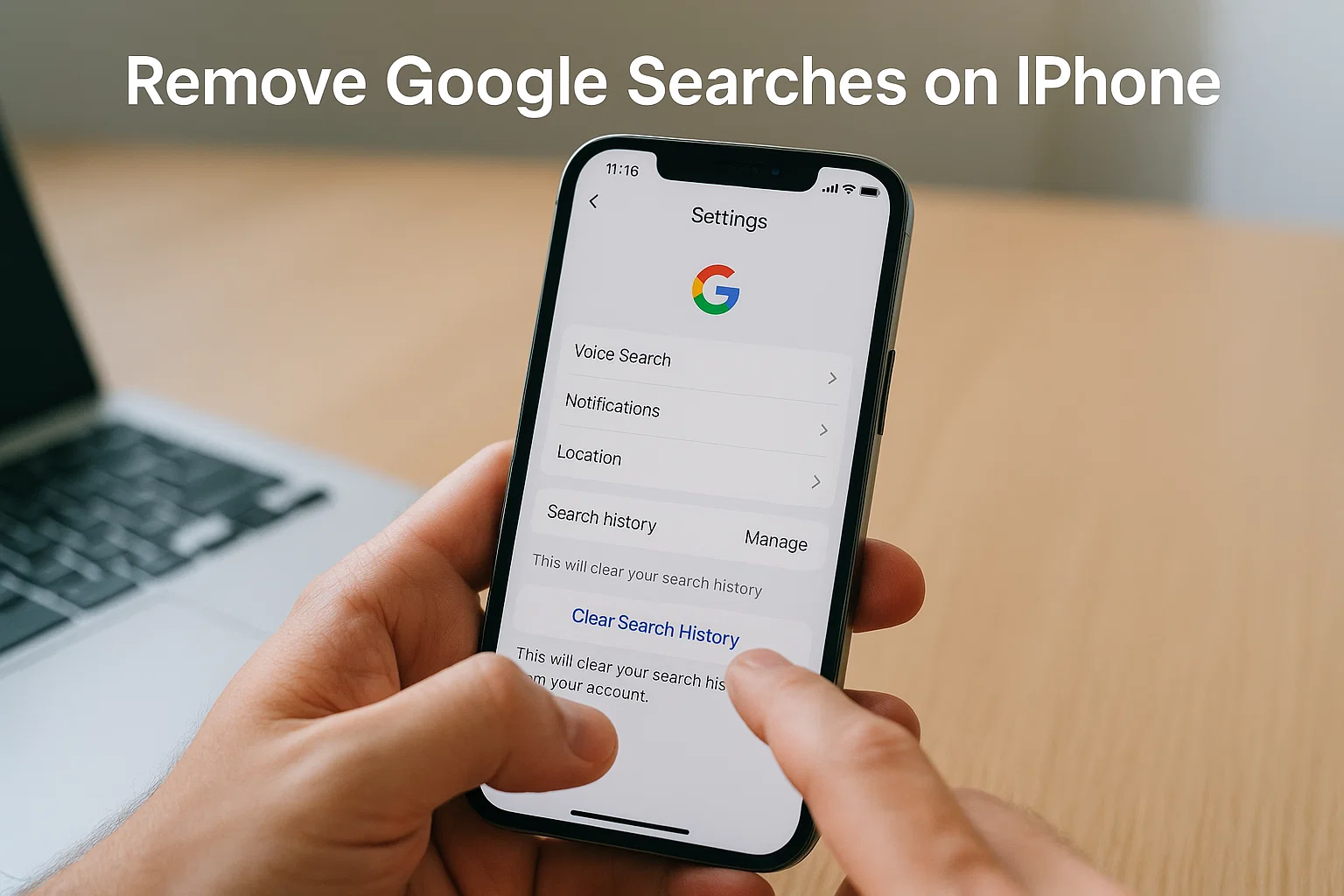
 If you’re trying to figure out how to remove Google searches from your iPhone, the quickest answer is this: open the Google app, go to your profile, tap Search History, and clear everything from there. That’s the fastest and most accurate way to wipe your Google searches.
But let me slow down a bit because I know how confusing this gets when you see your searches showing up again, or when the option looks hidden. I’ve helped so many people fix this same issue, and honestly, once you understand where Google stores your data, everything finally makes sense.
Let’s walk through it in a simple, friendly way.
Different length paragraphs. Clear explanations. Real tips that work in 2025.
What’s the fastest way to remove Google searches from your iPhone?
The fastest method is inside the Google app, not Safari or Chrome.
Here’s the direct path:
- Open the Google app on your iPhone.
- Tap your profile photo (top right).
- Choose Search History.
- Tap Delete.
- Select Delete today, Delete custom range, or Delete all time.
That’s it. Your searches disappear instantly from your Google account.
But here’s the part many people miss:
If you’re signed into the same Google account on another device, the searches can sync back unless you do one more thing. We’ll talk about that in a bit.
How do I remove Google searches on my iPhone if they keep coming back?
If your deleted searches keep returning, it means Web & App Activity is still turned on.
This feature saves everything you search, type, click, or open across your Google account not just on your iPhone.
To fully stop syncing:
- Open the Google app.
- Tap your profile photo.
- Select Search History.
- Tap Controls.
- Turn off Web & App Activity.
- Confirm Pause.
Once this is off, your iPhone will no longer sync or store new searches.
And trust me, this small step fixes 90 percent of cases.
How do I remove things from my iPhone Spotlight search history?
Sometimes the problem isn’t Google, it’s Spotlight the iPhone search you access by swiping down on the home screen.
Spotlight shows recent apps, Safari pages, suggestions, and even web searches.
To clear it:
- Open Settings.
- Tap Siri & Search.
- Scroll down to the app you want to reset.
- Turn off
- Show in Search
- Show Content in Search
- Suggest App
- Suggest Notifications
- Then turn them back on if you want fresh suggestions.
Doing this resets Spotlight’s memory for that specific app.
It’s not obvious, but it works.
Why can’t I delete Google searches on my iPhone sometimes?
If you tried deleting your history and it won’t go away, here are the four most common reasons:
1. You’re deleting Safari history, not Google’s history
Safari only clears Safari browsing.
Google app history stays untouched.
2. You’re not signed into the right Google account
Many users have multiple accounts:
- Work
- School
- Personal
- YouTube-only login
If you clean Account A, but search from Account B, the history stays.
3. “Web & App Activity” is still recording your searches
As mentioned earlier, you must pause the activity.
4. Your Chrome history is separate
If you’re using Chrome browser on iPhone:
Go here:
Chrome → More (3 dots) → History → Clear Browsing Data
Chrome has its own stored cookies, cached files, and synced history.
Different app, different storage.
How do I clear my browsing history from my phone completely?
If you want a full fresh start, you need to clear all three places:
1. Google App History
Google app → Profile → Search History → Delete All Time
2. Chrome Browser History
Chrome → More → History → Clear Browsing Data → Select All Data → Clear
3. Safari Browser History
Settings → Safari → Clear History & Website Data
These three cover every browser your iPhone usually uses.
Once they’re all cleared, your digital trail gets clean.
How to clear Google searches from Safari on iPhone (if you searched through Safari)
Safari has two types of history:
- Website history
- Cookies & cache
If you want both gone:
- Go to Settings.
- Tap Safari.
- Tap Clear History and Website Data.
- Confirm.
This removes all Google search entries made through Safari, not the Google app or your Google account.
How to remove Google searches from the Chrome app on iPhone
If you prefer Chrome:
- Open Chrome.
- Tap the three dots in the bottom corner.
- Select History.
- Tap Clear Browsing Data.
- Choose:
- Browsing history
- Cookies
- Cache
- Hit Clear Browsing Data again.
That wipes Chrome clean.
How to stop Google from saving searches permanently
If you don’t want Google to remember anything you search ever again, turn on Auto Delete.
Inside the Google app:
- Tap profile photo.
- Tap Search History.
- Tap Auto-delete.
- Choose between
- Auto-delete activity older than 3 months
- 18 months
- 36 months
3 months is the safest setting for privacy.
Google automatically clears everything after that period.
How to remove individual searches on iPhone (single search delete)
Sometimes you don’t want to delete the whole history just one embarrassing or unnecessary search.
Inside Google Search History:
- Scroll through your list
- Tap the “×” beside any search
- It gets deleted instantly
This works whether you searched from Safari, Google app, or Chrome.
How to delete recent searches shown under Google’s search bar
Those quick suggestions under the Google app search bar can be annoying.
Here’s how to remove them instantly:
- Open the Google app.
- Tap inside the search bar.
- Long-press any suggestion.
- Tap Delete.
Simple. Quick. Gone forever (from your local device).
Quick Table: Where Google searches are stored on iPhone
| Where You Searched | Where to Clear |
|---|---|
| Google App | Google App → Profile → Search History |
| Safari Browser | Settings → Safari → Clear History |
| Chrome Browser | Chrome → History → Clear Data |
| Logged In Google Account | myactivity.google.com |
This makes it easier to know exactly what you need to clean.
How to remove Google searches synced across your devices
If you use the same Google account on:
- Android phone
- Office computer
- Laptop
- Your iPad
Then all searches sync together.
To stop syncing:
Go to myactivity.google.com → Web & App Activity → Turn Off
Syncing will stop immediately.
You can also delete old entries from the same page.
What if Google searches still show up after deleting everything?
This usually means one of three things:
1. You’re logged into an old Google account inside Safari
Safari sometimes remembers accounts separately.
Go to:
Safari → Google.com → Profile → Sign Out
2. The Google app has cached suggestions
Clear its cache by reinstalling the Google app.
3. You have a managed device
School or office accounts sometimes block deletion.
If it’s a work or school device, your admin controls what you can delete.
How to remove Google searches from iPhone for privacy (2025 settings)
If privacy is your goal, do these five things:
- Turn off Web & App Activity
- Turn off Personalized Ads
- Turn off Location History
- Use Chrome’s Incognito mode
- Use Safari’s Private Browsing
Once done, your searches are protected, and nothing gets stored.
A quick real-life example
One of my friends complained that her “Google history never deletes.”
When I checked her phone, Safari was logged into a different Google account than her Google app.
Removing the searches from one account didn’t affect the other.
We signed her out from Safari, deleted history from both accounts, and suddenly everything worked.
Your case might be the same two logins without realizing it.
So what’s the simplest way to remove Google searches from an iPhone?
Here’s the short version you can remember:
- Google app → Profile → Search History → Delete
- Turn off Web & App Activity to stop future saving
- Clear Safari and Chrome if you used them
- Sign out of extra accounts if searches keep coming back
Once you do these, you’re done.
Your iPhone stays clean, and your searches stay private.

Muhammad Nawaz, tech guru & gaming aficionado. Your go-to for mobile news, gaming updates & expert blogging tips.