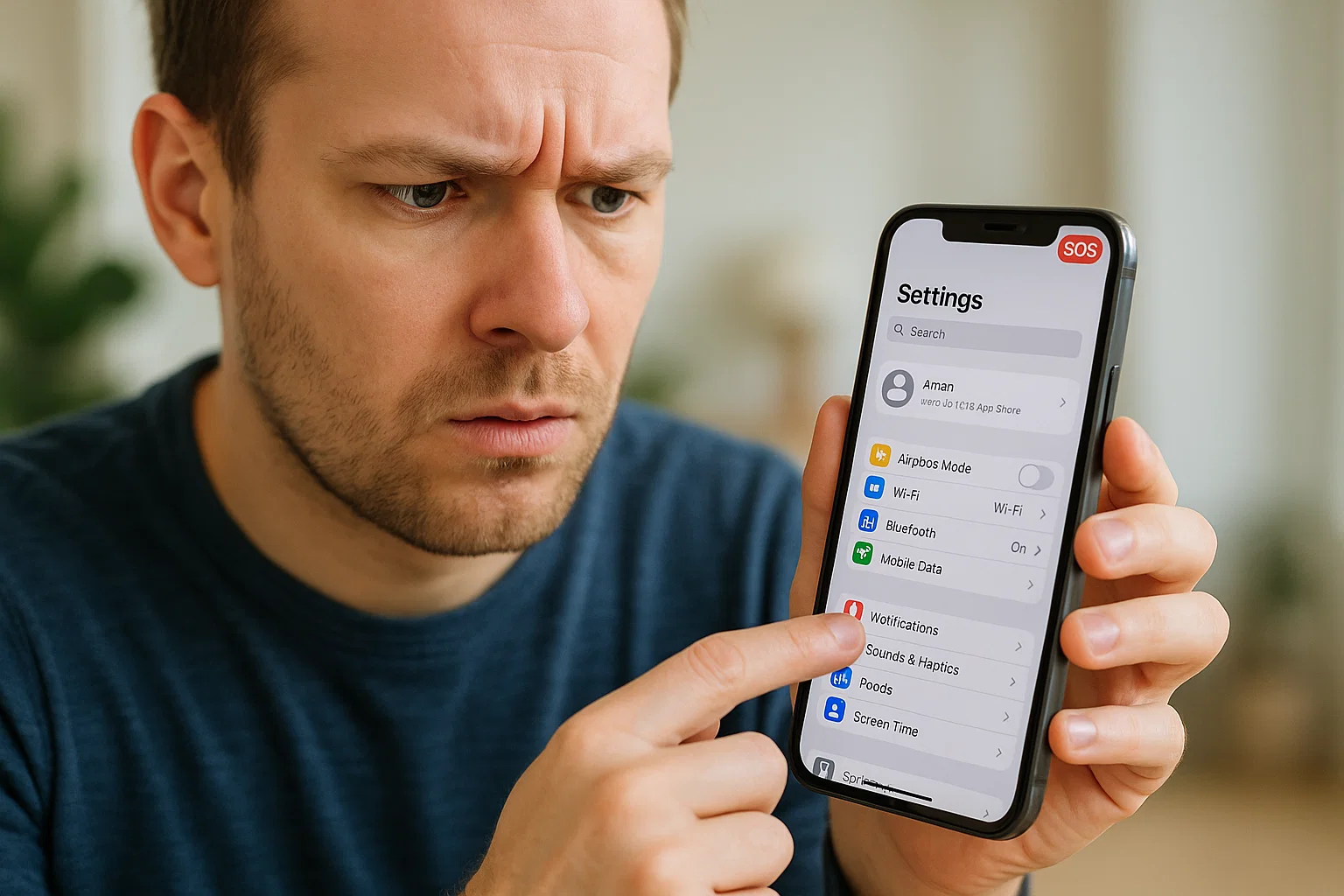
 If your iPhone suddenly shows SOS or SOS Only, trust me, I know the panic. It feels like your network disappeared for no reason, and now you can’t call, text, or even use data. The good news? You can remove your iPhone from SOS mode in a few minutes once you know what’s causing it. And that’s what this guide is all about.
I’ve helped hundreds of people fix the same issue from students stuck during exams to drivers on the road to parents who suddenly lost signals. The steps are simple, but you need the right order, otherwise the phone keeps jumping back into SOS.
So let’s break it down slowly, in plain English, in a way your younger cousin or your mom can understand easily.
What SOS Mode Actually Means on an iPhone
Let’s start with something simple. When your iPhone says SOS in the top bar, it’s not broken. It’s basically saying:
“Your network is gone, but emergency calls are still allowed.”
This happens when the phone loses full cellular service but can still talk to emergency channels. These signals work on different frequencies, so even if normal network drops, SOS stays.
Most people confuse SOS with:
- Phone being locked
- Account being blocked
- SIM card being damaged
But that’s rarely the case. SOS is mostly a network problem, not a hardware failure.
You’ll get out of it just give me a few minutes.
Why Do iPhones Suddenly Go Into SOS Mode?
Here’s the part most people never understand. Your iPhone is not doing this on purpose. Something is cutting your connection. The common reasons:
Weak or no network coverage
This is the number one cause. If you’re inside a basement, rural area, countryside road, or any low-signal zone, your phone can drop service.
eSIM or physical SIM not reading properly
A tiny misalignment can push the phone into SOS instantly.
Network outage from your carrier
Jazz, Zong, Telenor, Ufone, AT&T, Verizon all networks sometimes go down. If towers nearby fail, your phone jumps to SOS.
Wrong network settings
People often play with settings without knowing what they did.
iOS glitches after an update
iPhones love to misbehave after an update. It’s not your fault.
Roaming or airplane mode bugs
Sometimes you travel, or the phone switches networks, and suddenly it gets confused.
The moment you understand the reason, the solution becomes much easier.
How to Remove iPhone From SOS Mode: Quickest Fixes First
Alright, here’s where we actually fix the problem. Start from the first step and move down. Don’t jump around this order works best.
Restart your iPhone (Yes, this works most of the time)
It seems silly, but iPhones get stuck sometimes. A restart refreshes signals and reconnects you to the nearest tower.
If you have Face ID iPhone:
- Hold the Power + Volume Up
- Slide to power off
- Wait 10 seconds
- Turn it back on
If your iPhone has a Home button:
- Hold Power button
- Slide to turn off
- Wait
- Turn on
You’d be surprised how many SOS problems die right here.
Turn Airplane Mode on and off
This one is quick.
Swipe down → Tap Airplane Mode → Wait 10 seconds → Turn it off.
This forces the network to re-register the SIM.
If your signals return after this, you’re done.
Check if your SIM card is the problem
I’ve seen it many times the SIM was not inserted properly or got slightly loose.
Here’s a small test:
- Take the SIM tray out
- Clean it with a soft cloth
- Put it back carefully
- Restart the phone
If you use eSIM, the issue is usually software-based, so don’t worry.
Why Does My iPhone Suddenly Say SOS? (Real-Life Examples)
Let me explain this in normal language, not technical jargon.
Imagine you’re inside a shopping mall. You walk into an area with bad network, maybe a basement shop. The tower can’t reach your phone. At that exact point, iPhone says:
“Okay, I can’t find your carrier, but I can still call emergency services.”
And boom SOS mode.
Another scenario:
You’re using dual SIM. One SIM loses service completely. Your iPhone might jump into SOS even if the other SIM works fine.
Or maybe you updated your iOS last night. The update reset one tiny network file and now your phone is confused.
These things happen more than you think.
Turn Off 5G (Yes, this can fix your SOS issue)
Here’s something most people don’t realize:
5G is new, unstable in many regions, and often causes network drops.
To disable 5G:
- Open Settings
- Tap Mobile Data
- Tap Voice & Data
- Change it to 4G or LTE
I’ve fixed so many iPhones by telling people to try this one simple step.
Select the Right Network Manually
Sometimes your iPhone connects to the wrong tower. You can fix it manually.
Steps:
- Go to Settings
- Tap Mobile Data
- Tap Network Selection
- Turn off Automatic
- Pick your network manually (Jazz, Verizon, etc.)
If your network doesn’t appear, the issue is with coverage or a carrier outage.
Reset Network Settings (Don’t worry, it won’t delete photos)
This step is powerful. It resets all cellular, WiFi, VPN, and APN settings to default.
It won’t delete your data.
Steps:
- Open Settings
- Tap General
- Scroll to Transfer or Reset iPhone
- Tap Reset
- Select Reset Network Settings
Your phone will restart.
Most SOS cases disappear after this.
Is Your iPhone Locked to a Carrier? Check This.
If you bought your iPhone from someone else, it might be locked to a network that isn’t available in your country.
Check your device:
- Go to Settings
- Tap General
- Tap About
- Scroll until you see Carrier Lock
If it says “No SIM restrictions,” then it’s unlocked.
If it shows:
- SIM Locked
- Carrier locked
- Only works with X network
Then that’s your issue.
Unlocking requires contacting the carrier or a professional service.
iPhone Still Stuck in SOS? Try These Deeper Fixes.
At this point, your device has a tougher issue but don’t worry, we still have options.
Update your iPhone’s iOS
Go to:
Settings → General → Software Update
Apple often patches network problems quietly. Your SOS came from an outdated modem file.
Remove and Re-add eSIM
For eSIM users:
- Open Settings
- Tap Mobile Service
- Remove eSIM
- Re-scan QR code or re-activate from carrier app
This refreshes your entire service line.
Check for carrier settings update
Sometimes your network sends new settings.
Settings → General → About
If a pop-up appears saying Carrier Update Available, tap Update.
Restore iPhone Network Using iTunes/Finder (Advanced)
This step is like a deep cleaning.
- Connect iPhone to computer
- Open iTunes/Finder
- Click Check for Update
- Restore the carrier bundle
Do not erase your phone only update.
Why Do Phones Get Stuck in SOS Mode? (The Real Hidden Reason)
Let me explain something from experience working with tons of iPhones.
Your mobile network is not perfect. It has:
- Tower congestion
- Peak time overload
- Temporary shutdowns
- Low-signal pockets
- Maintenance downtimes
When any of these happen, iPhones prefer to show SOS instead of “No Service” because it wants you to know:
“You can still call 911 or emergency numbers.”
So the SOS icon is not a problem it’s a warning.
But yes, it’s annoying.
How to Unlock iPhone Stuck in SOS Mode?
People usually confuse this with iCloud lock or passcode lock.
Let me make it clear:
- SOS mode does not lock your phone
- You can still open apps
- You can still use WiFi
- You can still open your screen
If your phone is stuck on a screen asking for passcode after emergency calls, then restart the device.
If it keeps showing SOS at the top despite having good signal, then the network is the issue not the lock.
Check If Your SIM Is Blocked by the Carrier
Yes, this happens.
If you:
- Didn’t recharge
- Got your SIM suspended
- Violated network rules
- Changed network areas frequently
- Bought a used SIM
Your SIM might get temporarily blocked.
Try inserting your SIM into another phone.
If the other phone also says:
- No service
- Emergency calls only
- SIM not allowed
Then contact your carrier.
Try Using a Different SIM Temporarily
This trick helps you quickly find whether the issue is with the phone or the SIM.
Take your friend’s SIM or spare SIM.
Insert it into your iPhone.
- If service appears → your SIM is the problem
- If SOS remains → your phone has a network issue
Easy, right?
If You’re Using Dual SIM, Disable One Line
Dual SIM can confuse the network sometimes, especially after traveling.
Go to:
Settings → Mobile Service → Turn off one line
Then restart your phone.
Sometimes your iPhone simply needs to focus on one network.
Contact Your Carrier
If nothing has worked so far, the issue is now on the carrier side.
Tell them:
- Your iPhone shows SOS
- You tried restarting
- You reset network
- You reinserted SIM
- You changed to 4G
- You updated
They will check your SIM status, nearest towers, and signals.
Sometimes, they refresh your SIM from their system and your network comes back instantly.
Should You Worry If iPhone Keeps Showing SOS?
Honestly?
Not always.
But if it happens:
- Every day
- In areas where signal is normally strong
- After every iOS update
- When other phones around you have full signal
Then yes, you should check your SIM or get it replaced.
Most SIM cards become weak after 3–5 years of use.
What If iPhone Only Shows SOS in One Specific Area?
This means:
- The towers in that area are weak
- You’re in a dead zone
- You’re inside thick walls
- Maybe a basement or elevator
iPhones handle weak signals differently from Android phones. Some Android devices keep “1 bar” even if network is dead. iPhone prefers to show SOS.
So don’t compare bars they don’t tell the whole story.
Why iPhone Shows SOS & How to Fix It
| Cause | Quick Fix |
|---|---|
| Weak network | Move to open area, airplane mode toggle |
| SIM issue | Reinsert SIM, try new SIM |
| Carrier outage | Wait or call provider |
| 5G instability | Switch to 4G |
| Wrong network settings | Reset network settings |
| iOS bug | Update iOS |
| eSIM glitch | Remove & re-add eSIM |
| Carrier lock | Unlock the device |
So… What’s the Fastest Way to Remove iPhone From SOS Mode?
If you just want the simple answer, here’s the order that works in 99 percent of cases:
- Restart iPhone
- Turn airplane mode on/off
- Switch 5G → LTE
- Reset network settings
- Reinsert SIM
- Check for carrier outage
- Update iOS
- Try another SIM
- Call carrier
Most people fix it at step 1–3.
Final Thoughts
Look, seeing SOS on your iPhone feels scary the first time. You think your phone broke or something is wrong with Apple. But honestly? It’s almost always a small network issue.
You followed all the steps, and now you understand:
- Why SOS happens
- How to remove iPhone from SOS mode
- How to prevent it next time
- When to call your carrier
- When your SIM needs replacement
If you’re still stuck, the carrier is your final stop. They can refresh your SIM, fix tower issues, or tell you what’s wrong in minutes.
And of course, if you ever need help again I’m here.

Muhammad Nawaz, tech guru & gaming aficionado. Your go-to for mobile news, gaming updates & expert blogging tips.