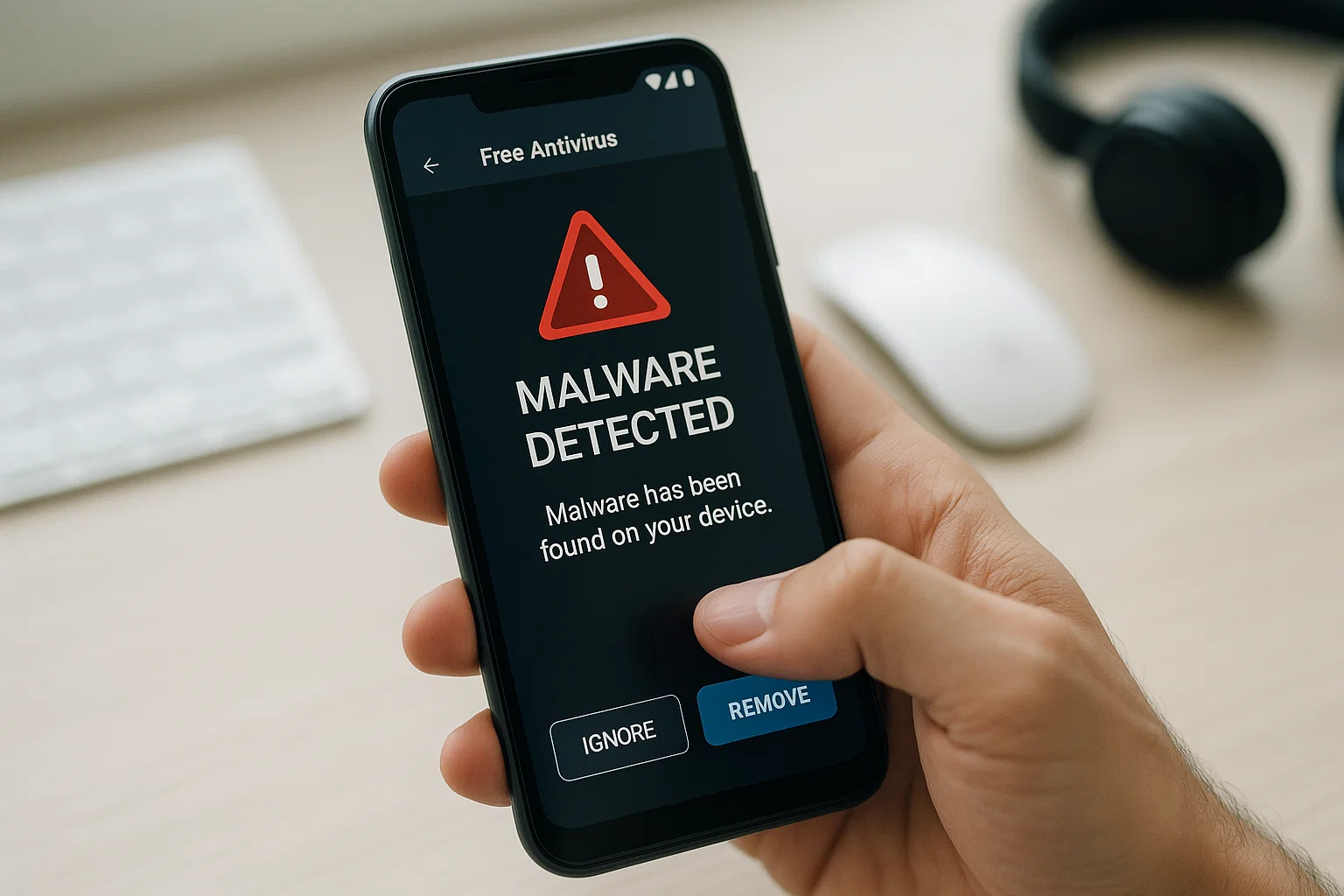
 Before removing anything, you need to confirm whether your phone really has malware or just too many apps running in the background.
Here are clear signs that your Android phone may be infected:
- Apps keep crashing for no reason.
- You see ads or pop-ups even when no app is open.
- Battery drains faster than usual.
- Your data usage suddenly spikes.
- The phone heats up even while idle.
- Unknown apps appear on your home screen.
If you notice two or more of these, it’s time to take action.
How to Check If You Have Malware Using Settings
- Open Settings → Apps → See all apps.
- Scroll through the list and look for any unknown or suspicious app names especially those installed recently.
- Tap on the app and check Permissions. If it has access to things like messages, location, or storage without reason, that’s a red flag.
- Go back to Settings → Battery → App usage. Apps draining abnormal power could also be malware.
If you’re unsure, Google the app name to see whether it’s legitimate.
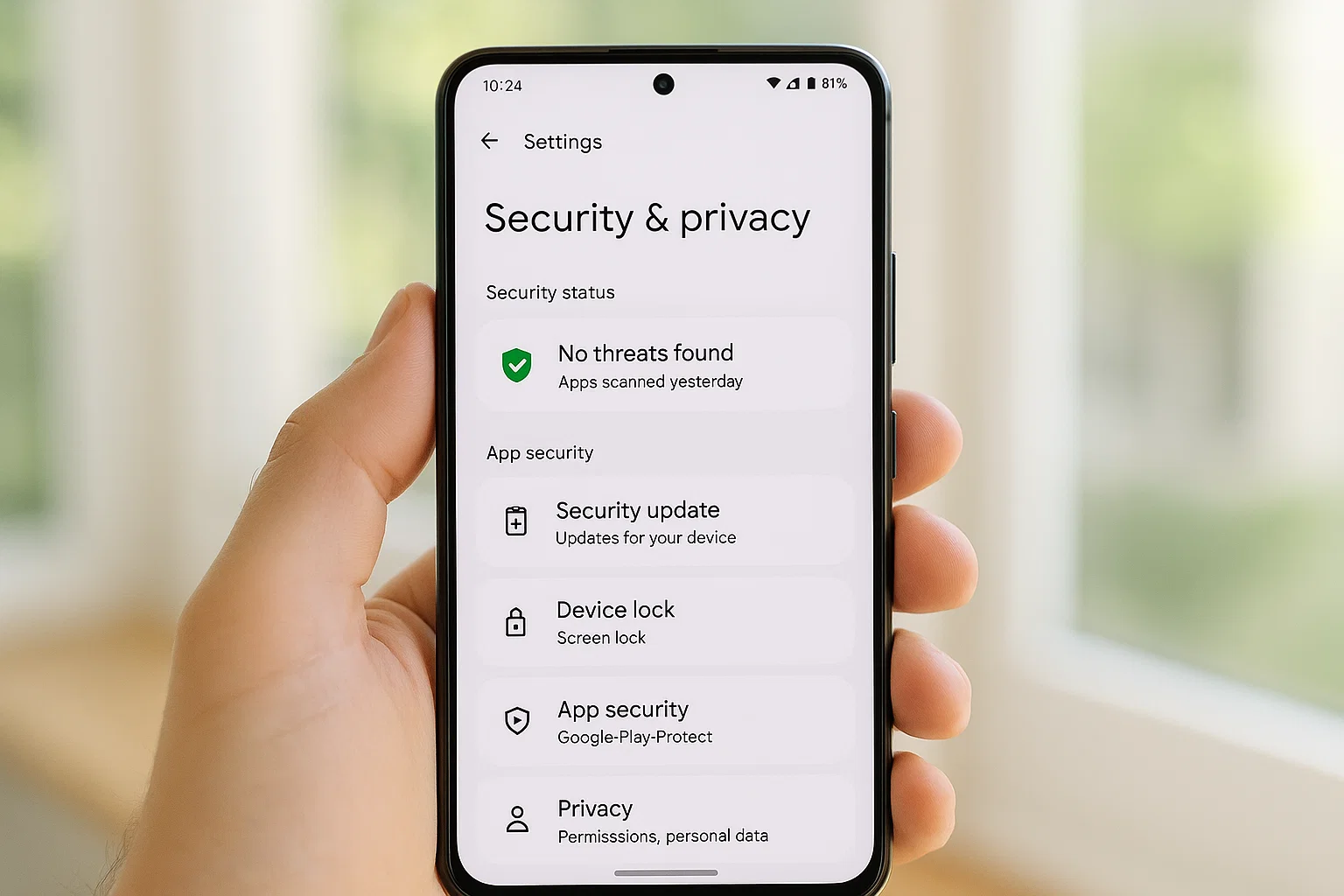
How to Remove Malware from Android Phone (Step-by-Step)
Once you’ve confirmed that malware is present, don’t panic. Follow these safe and free steps to remove it permanently.
Step 1: Boot Your Phone into Safe Mode
Safe Mode starts your Android phone without running third-party apps which is perfect for deleting malicious ones.
Here’s how:
- Press and hold your power button.
- On-screen, tap and hold “Power off” until you see “Safe Mode.”
- Tap OK to reboot.
Once in Safe Mode, you’ll see “Safe Mode” in the corner. Now only system apps will run.
Step 2: Delete Suspicious Apps
Now that malware can’t auto-run, it’s safe to uninstall.
- Go to Settings → Apps → See all apps.
- Find the suspicious app.
- Tap Uninstall.
- If “Uninstall” is greyed out, first go to Settings → Security → Device Admin Apps, and disable its admin rights.
Repeat for all unwanted or unfamiliar apps.
Step 3: Clear Cache and App Data
Even after uninstalling, leftover files might stay hidden.
- Go to Settings → Storage → Cached data → Clear cache.
- Then open Files by Google or your phone’s File Manager.
- Delete junk and suspicious folders manually (avoid deleting system folders).
This step helps wipe any hidden malware traces.
Step 4: Use Google Play Protect
Google’s built-in security scanner is actually effective if used properly.
- Open the Play Store.
- Tap your profile icon → Play Protect → Scan.
- Wait for it to scan your phone.
- If it flags any app, tap Uninstall immediately.
Play Protect keeps running in the background, so keep it on.
How Do I Clean My Phone for Malware for Free?
You don’t need a paid antivirus to clean your Android. Some free, trusted tools can do the job just as well.
Best Free Malware Removal Apps (2025 Edition)
| App Name | Highlights | Rating |
|---|---|---|
| Avast Mobile Security | Detects hidden malware & blocks fake apps | ⭐⭐⭐⭐½ |
| Bitdefender Free | Lightweight, auto-scans new installs | ⭐⭐⭐⭐ |
| Kaspersky Free Antivirus | Great for phishing and trojan protection | ⭐⭐⭐⭐½ |
| Google Play Protect | Built-in, runs automatically | ⭐⭐⭐⭐ |
| Malwarebytes Mobile Security | Excellent at removing spyware | ⭐⭐⭐⭐ |
Tip: Run a scan with one app, remove the threats, then uninstall that app if you don’t want to keep it. Having multiple antivirus apps at once can slow your device.
Does Android Have a Built-In Virus Cleaner?
Yes, it does and it’s called Google Play Protect. It’s pre-installed on almost all Android devices.
Here’s what it does:
- Scans apps in the background for malware or unwanted behavior.
- Warns you about suspicious apps before download.
- Removes unsafe apps automatically.
How to Enable Google Play Protect
- Open Google Play Store.
- Tap your profile picture → Play Protect → Settings.
- Make sure both options are ON:
- Scan apps with Play Protect.
- Improve harmful app detection.
That’s it. Your phone will now check every app before installation and run safety scans daily.
How to Remove Virus from Samsung Phone for Free
Samsung phones have their own system cleaner Device Care or Smart Manager that can help too.
Here’s how:
- Go to Settings → Battery and device care.
- Tap Device protection → Scan phone.
- Let it complete and remove anything flagged.
- Tap Optimize now to clear background junk.
If malware survives, repeat the Safe Mode + Uninstall method from earlier. Samsung’s Knox protection also adds another layer of safety against data leaks.
How to Remove Virus from Phone in 5 Seconds (Quick Trick)
There’s no true “one-tap magic,” but you can do a quick cleanup if you suspect malware.
Try this:
- Pull down the quick settings menu and turn on Airplane Mode.
- Go to Settings → Apps and uninstall any app that was just installed before the problem started.
- Restart your phone.
This blocks internet access, disables malicious activity, and removes the threat fast.
It’s a temporary fix but often works when malware is newly installed.
Remove Virus from Phone Without Computer
Everything above can be done without a PC.
If you want an extra deep clean though, you can perform a factory reset right from your phone.
Factory Reset (Last Option)
Only use this if malware won’t go away.
- Backup your important files (photos, contacts, chats).
- Go to Settings → System → Reset options.
- Tap Erase all data (factory reset).
- Confirm and wait.
Once it reboots, your phone will be completely clean.
Just remember to install apps only from Google Play afterward.
How to Detect Malware on Android
Sometimes malware hides under legit-looking apps. Here’s how to dig deeper:
- Use App Permissions:
Go to Settings → Privacy → Permission manager.
If a random photo editor or flashlight app can access your location, messages, or microphone it’s likely malware. - Monitor Battery Usage:
In Settings → Battery → Battery usage, if an unknown app shows high consumption, uninstall it. - Check Data Usage:
In Settings → Network & Internet → Data usage, spot any apps using lots of data even when not in use. - Use Play Protect Regularly:
Run a scan once a week to catch anything new.
How to Clean Your Phone from Virus for Free (Extra Tips)
- Delete files from Downloads that you don’t recognize.
- Avoid installing APK files from websites or Telegram groups.
- Don’t click suspicious links sent through WhatsApp or SMS.
- Regularly clear your browser history and cache.
- Keep your phone updated most malware relies on outdated software.
Quick Summary Table
| Step | Action | Purpose |
|---|---|---|
| 1 | Boot in Safe Mode | Stop malware from running |
| 2 | Delete suspicious apps | Remove infection source |
| 3 | Clear cache/data | Clean hidden files |
| 4 | Scan with Play Protect | Detect any leftovers |
| 5 | Update your phone | Patch security holes |
Does Android Need Antivirus Apps?
Technically, Android doesn’t need antivirus if you’re careful with what you install and always use Play Protect.
However, for beginners or kids using shared phones, keeping one lightweight antivirus app is smart it offers peace of mind.
Use only one trusted app at a time. Delete fake antivirus apps that promise “instant 5-second virus removal.” Most of them are malware themselves.
How to Prevent Malware in the Future
You can avoid 99% of Android malware by following simple habits:
- Download only from Play Store.
- Read app reviews before installing anything.
- Keep system updates on auto.
- Avoid cracked games or paid apps from random sites.
- Use strong lock screens and avoid public Wi-Fi.
Also, once a month, check your phone’s Storage → Other apps to spot new installs. Malware usually sneaks in quietly through new apps.
FAQs
How do I remove malware from my Android phone permanently?
Boot in Safe Mode, uninstall suspicious apps, clear cache, scan with Play Protect, and restart your phone.
How do I check if my phone has a virus in settings?
Go to Settings → Apps → See all apps, check for unknown names, and review their permissions.
Does Android have a built-in virus cleaner?
Yes. Google Play Protect is the default cleaner and runs automatically.
How to remove malware for free?
Use Safe Mode, Play Protect, or free antivirus apps like Avast or Kaspersky.
Can malware steal my data?
Yes, advanced malware can read messages or banking info. That’s why removing it quickly is crucial.
How to remove malware from Samsung phones?
Use Settings → Device care → Device protection → Scan and delete flagged apps.
So What Should You Do Now?
If your phone is showing pop-ups, lagging, or overheating, act fast. Malware spreads quietly, and the longer it stays, the more damage it can do.
Start by restarting in Safe Mode, uninstall anything suspicious, and use Play Protect for a deep scan.
Keep your apps updated and never install random files shared on WhatsApp or TikTok comments.
Remember, you don’t need a computer or paid cleaner app just awareness and a few smart clicks.
For more Android tips, security fixes, and free app recommendations, explore Mobiledady.com’s Android and Tips categories.

Muhammad Nawaz, tech guru & gaming aficionado. Your go-to for mobile news, gaming updates & expert blogging tips.