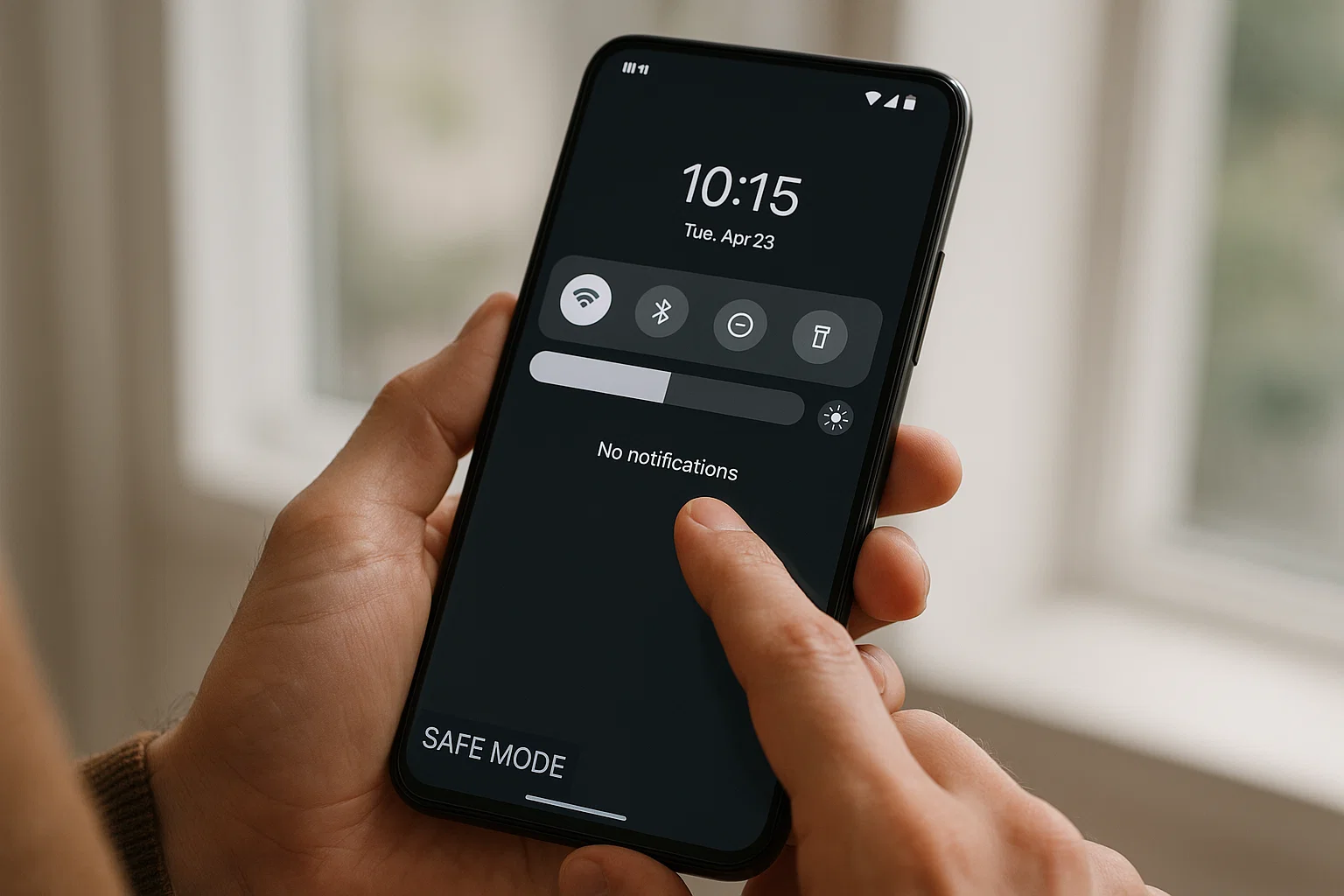
 If your phone suddenly shows Safe Mode, don’t panic. I’ve dealt with this many times while fixing friends’ phones, and the good news is simple: you can remove Safe Mode in a few seconds in most cases. Safe Mode just means your phone has disabled third-party apps to protect itself. Once you turn it off, everything goes back to normal.
Here’s the direct answer you’re looking for:
Restart your phone. On most devices, restarting is the fastest way to remove Safe Mode. If your phone is stuck, then a few settings checks or button fixes usually solve it.
Let’s walk through every working method in a clean, friendly way so you can fix it right now.
Why Is My Phone Stuck in Safe Mode?
Safe Mode usually turns on for a reason. The moment your phone detects something unstable, it switches to this mode to protect the system.
Here are the real causes:
- A third-party app is crashing your system
- Your phone restarted after a system error
- You pressed some buttons accidentally while rebooting
- A stuck volume button (very common on older phones)
- Malware or a faulty app update
- Glitch after dropping your phone or battery replacement
Safe Mode is not dangerous. It’s your phone’s way of saying, “Let me protect myself until things settle.”
But if it stays on, that’s where it gets annoying. And we fix that next.
How Do You Turn Off Safe Mode? (Quickest Method)
The fastest and simplest way is this:
Restart your phone.
Just hold the power key, tap restart, and let it reboot normally.
Most of the time, Safe Mode disappears instantly.
If not, keep going — your phone isn’t broken, it’s just stuck.
Where Is Safe Mode Located on a Phone?
Safe Mode is not a setting you “open.”
It’s a system-level mode that appears automatically.
You’ll only see it in one place:
- Bottom left or bottom right of your screen: “Safe Mode”
You can’t turn it on from settings.
You can only turn it off using the fixes below.
How Do I Go Back to Normal Mode From Safe Mode?
Now let’s go step by step.
Each one is a “mini fix,” so you can stop as soon as your phone returns to normal.
1. Restart Your Phone (The 10-Second Fix)
This solves Safe Mode for 80 percent of people.
Steps are simple:
- Hold the power button
- Tap Restart
- Wait for the phone to fully boot
If Safe Mode disappears, you’re done.
If not, keep going.
2. Turn Off Safe Mode From Notification Panel
Some phones (Samsung, Oppo, Vivo, Infinix, Tecno) give a quick toggle inside notifications.
Try this:
- Swipe down the notification bar
- Look for “Safe Mode is On”
- Tap Turn Off or Restart to Exit Safe Mode
This is the easiest fix when it appears.
3. Make Sure Your Volume Buttons Aren’t Stuck
A stuck volume button can force your phone into Safe Mode.
Do this quick test:
- Press volume up and down separately
- Check if one button feels stiff or keeps triggering
- Clean around the buttons with a cloth or toothpick edge
If a button is jammed, your phone will keep entering Safe Mode after every restart.
Fix the button pressure, then reboot.
4. Remove the Battery (Only for Old Phones)
If you’re using an older Samsung or QMobile with a removable battery:
- Power off the phone
- Remove the battery for 30 seconds
- Insert again
- Restart normally
This resets the boot mode instantly.
5. Uninstall the Faulty App That Triggered Safe Mode
Safe Mode turns on when a bad app misbehaves.
Check this:
- Go to Settings
- Tap Apps
- Look for the app you installed recently
- Uninstall it
- Restart the phone
This works especially if the issue began right after installing a new game, wallpaper app, or unknown APK.
6. Clear System Cache (Fix for Samsung, Xiaomi, Oppo)
Clearing cache doesn’t delete your photos or apps.
It only removes temporary files.
Steps differ by brand, but most phones follow this pattern:
- Power off your phone
- Press Power + Volume Up together
- Enter Recovery Mode
- Select Wipe Cache Partition
- Reboot system
After rebooting, Safe Mode usually disappears.
7. Check for Malware or Suspicious Apps
Some shady apps force your phone into Safe Mode by crashing services.
Look for apps like:
- Unknown cleaners
- System boosters
- Cracked games
- Random “Flashlight Pro” type apps
Remove anything you don’t trust.
Restart again.
8. Do a Soft Reset (Not Factory Reset)
A soft reset only refreshes the system memory.
Steps:
- Hold Power + Volume Down for 10–15 seconds
- Your device will restart automatically
This often kicks the system out of Safe Mode if it was stuck due to a minor glitch.
9. If Nothing Works — Try Safe Mode Off Through Keys
If your touch is not working or Safe Mode freezes the screen:
- Turn Off Phone
- Press Power Button
- When logo appears, press Volume Down
- Hold for 10 seconds
- Phone boots normally
This manually forces the system to exit Safe Mode.
10. Factory Reset (Last Option Only)
If your phone still refuses to leave Safe Mode, you might have a deep system error.
A factory reset removes everything, so backup important data first.
Steps:
- Settings
- System
- Reset Options
- Erase All Data
This resets Android to fresh condition.
You’ll never see Safe Mode stuck again (unless a hardware button stays jammed).
Why Safe Mode Turns On vs How to Fix It
| Why It Happens | How to Fix It |
|---|---|
| Faulty app | Uninstall the app + Restart |
| Stuck button | Clean buttons + Restart |
| System crash | Soft reset or simple restart |
| Malware app | Remove suspicious apps |
| Accidental key press | Restart normally |
| Hardware issue | Repair button or factory reset |
FAQs (Snippable for Search)
Why is my phone stuck in Safe Mode?
Because a faulty app, system glitch, stuck volume button, or malware triggered Android’s protection mode.
How did you turn off Safe Mode?
Restarting your phone is the quickest fix. If Safe Mode returns, uninstall suspicious apps or check for stuck buttons.
Where is Safe Mode on a phone?
You’ll see “Safe Mode” text at the bottom corner of your screen. It’s not in settings.
How do I go back to normal mode?
Restart your phone. If that fails, use notification toggle, clear cache, or remove recently installed apps.
Your Phone Is Back to Normal
Safe Mode feels scary the first time, but once you know how it works, it becomes easy to handle. A simple restart fixes it most of the time, but even stubborn Safe Mode issues can be solved at home. Just follow the steps, stay calm, and your apps will start working again.
If you ran into Safe Mode because of system errors, checking your buttons and removing bad apps will save you from future trouble too.

Muhammad Nawaz, tech guru & gaming aficionado. Your go-to for mobile news, gaming updates & expert blogging tips.