If you’ve ever been tagged in a photo or post on Facebook that you don’t like maybe an awkward selfie, an old memory, or just something you’d rather keep private don’t worry. Removing a tag on Facebook is quick and easy.
You can remove or untag yourself from posts, comments, and photos using either the mobile app or desktop site, and you stay completely in control of how you appear online.
Let’s walk through everything step by step plus a few hidden tips to manage your tagging privacy so you can stop unwanted tags from popping up again.

What Does “Removing a Tag” on Facebook Mean?
When someone tags you on Facebook, your name or profile gets linked to that post, photo, or comment. It shows up for your friends or even the public, depending on the person’s privacy settings.
By removing a tag, you’re simply disconnecting your name or profile from that content without deleting the post itself.
Think of it like saying: “Hey, I don’t want to be attached to this photo, but you can keep it on your account.”
Here’s what happens when you remove a tag:
- The post will no longer appear on your profile or timeline.
- Your friends won’t see it under your tagged photos.
- The person who posted it still has it but you’re not publicly linked anymore.
How Do I Remove a Tag on Facebook (Quick Answer)
Here’s the quick version if you just need a fast fix:
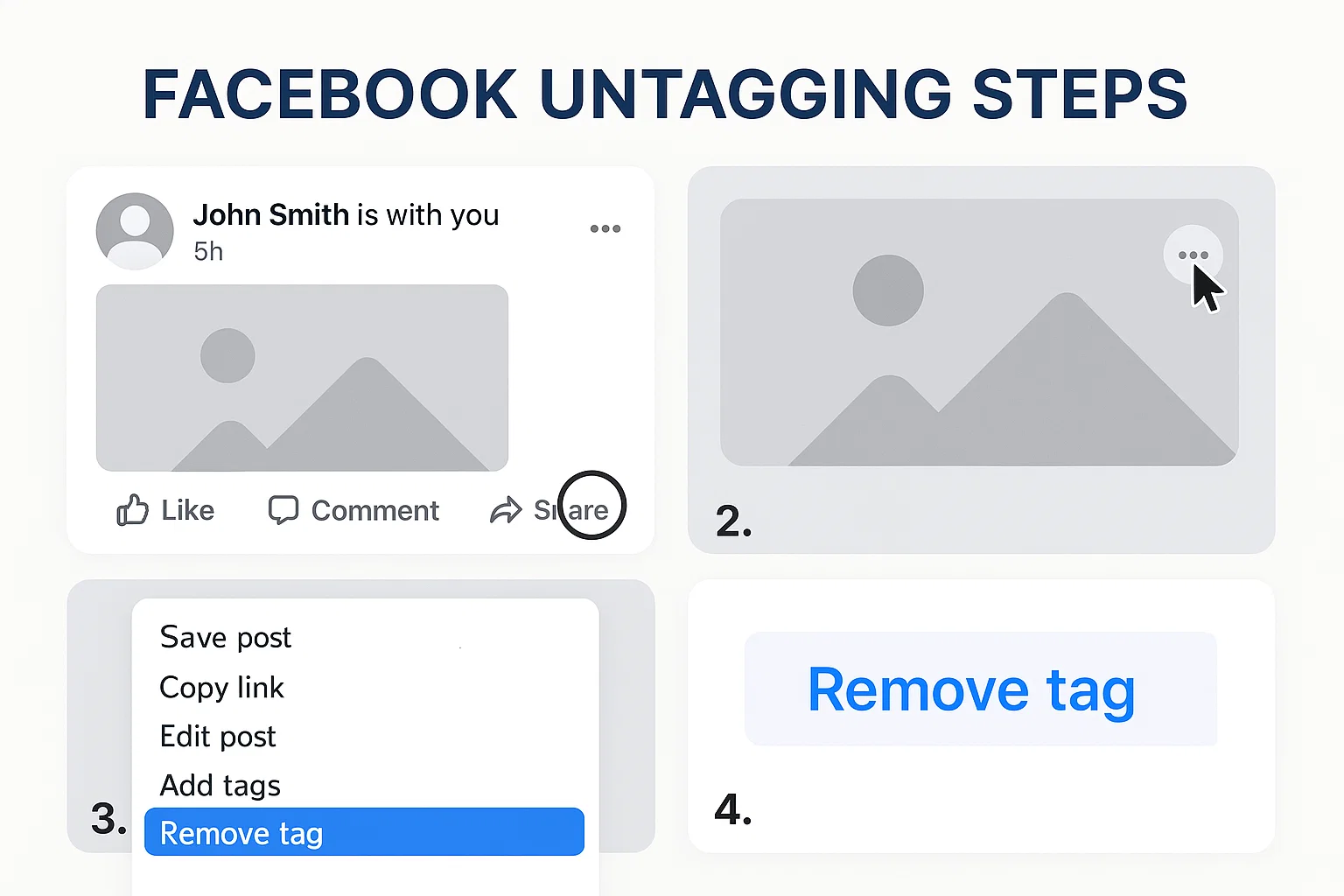
- Open Facebook and go to the post or photo where you were tagged.
- Tap the three dots (•••) in the corner of the post.
- Select “Remove tag” or “Remove me from post.”
- Confirm when prompted.
That’s it you’re untagged. The post stays online, but your profile is no longer attached to it.
Now, if you’d like to know how to do it specifically for photos, comments, and mobile devices, let’s go deeper.
How Do I Untag Myself from a Facebook Post?
If someone tagged you in a post like a status update, shared meme, or news article here’s how to remove it:
On Mobile (Android or iPhone)
- Open the Facebook app.
- Tap the menu icon (☰) and go to “Profile.”
- Scroll to the post where you’re tagged.
- Tap the three dots (•••) on the top right of that post.
- Choose “Remove tag.”
The post will instantly disappear from your profile and from the “Tagged” section.
On Desktop (Facebook Web)
- Visit facebook.com and log in.
- Go to your profile and click “Activity Log.”
- On the left sidebar, select “Tagged posts.”
- Find the post you want to untag from and click the circle icon beside it.
- Choose “Remove tag” or “Hide from profile.”
If you only hide the post, it stays visible to others but disappears from your timeline.
If you remove the tag, it completely disconnects your profile from that post.
How Do I Untag Myself from a Facebook Photo?
Facebook photos are the most common reason people look for the untag option. Whether it’s a group shot you didn’t approve of or an old memory that resurfaced, untagging is simple.
Using the Facebook App
- Open the photo where you’re tagged.
- Tap the three-dot icon in the top-right corner.
- Tap “Remove tag.”
- Confirm when asked.
The tag disappears immediately. If it’s in an album belonging to a friend, they’ll still have the picture just without your name linked.
Using Facebook Desktop
- Click on the photo you were tagged in.
- On the right side of the screen, find your name listed as a tag.
- Hover over your name, and you’ll see the “Remove tag” option appear.
- Click it and confirm.
💡 Tip: If the photo is offensive or violates privacy, you can also report it to Facebook. Just select “Find support or report photo” from the same menu.
How Do I Remove a Tag in a Facebook Comment?
Facebook allows tagging in comments too and this one’s slightly different.
Here’s how to remove your name from a comment tag:
On the Facebook App
- Go to the post where you were mentioned in a comment.
- Tap and hold the comment containing your tag.
- Choose “Remove tag” if available.
If the comment only mentions you with “@YourName,” it’s not an actual tag just text. In that case, you can’t remove it, but you can ask the person to delete or edit it.
On Desktop
- Hover over the comment that mentions you.
- Click the three dots (•••) beside it.
- Choose “Remove tag” or “Delete comment” (if it’s yours).
If the tag bothers you, you can also block the person or restrict them so they can’t tag you again.
How Do I Remove Mention Tags on Facebook?
Facebook “mentions” are slightly different from regular tags.
A mention happens when someone types your name preceded by “@” for example, “Had lunch with @AlexandraSmith.”
If you want to stop being mentioned:
Option 1: Ask the person to remove your name
If they used the @mention feature, only they can edit the post to remove it.
Option 2: Adjust your Privacy Settings
- Go to Settings & Privacy → Settings → Profile and Tagging.
- Under “Review tags people add to your posts,” turn it ON.
- Under “Who can see posts you’re tagged in,” choose “Only me.”
That way, you’ll have to approve tags before they appear, and even if someone mentions you, it won’t automatically show up for everyone.
How to Remove Tags in Facebook Using iPhone
If you’re using an iPhone, the process is very similar but the interface can look a little different depending on your app version.
Here’s a quick iPhone-friendly guide:
- Open the Facebook app on your iPhone.
- Go to your profile page.
- Tap “Activity Log.”
- Select “Posts you’re tagged in.”
- Tap the three dots (•••) next to the post.
- Choose “Remove tag” and confirm.
✅ Pro Tip: You can also use Facebook Lite if your iPhone storage is limited it’s faster and uses less data while still letting you manage tags.
How to Stop People from Tagging You on Facebook
If you’re tired of constantly removing tags, you can prevent this altogether.
Here’s how to manage your tagging privacy settings:
- Open Facebook Settings.
- Go to “Profile and Tagging.”
- Find the section “Review tags people add to your posts before the tags appear on Facebook.”
- Turn it ON.
Now, every time someone tags you, you’ll get a notification to approve or ignore it.
This keeps your profile cleaner and protects your privacy.
Can You Remove All Tags at Once?
Unfortunately, Facebook doesn’t offer a “Remove All Tags” button.
However, you can speed things up through the Activity Log:
- Go to your Profile → Activity Log.
- Select “Tagged posts.”
- Review and bulk select the posts.
- Choose “Remove tags.”
This works great for cleaning up old photos or posts you were tagged in years ago.
What Happens When You Untag Yourself?
Here’s what you should know after removing a tag:
| Action | What Happens |
|---|---|
| You remove a tag from a post | The post stays on the other person’s profile but disappears from yours. |
| You remove a tag from a photo | The photo still exists, but your name isn’t linked anymore. |
| You remove a mention (@name) | Only the original poster can remove it. |
| You enable tag review | You’ll approve tags before they appear on your profile. |
So, removing a tag is more like “unlinking” your name, not deleting the content.
Why Can’t I Remove a Tag on Facebook?
If you can’t find the option to remove a tag, here are some possible reasons:
- The post or photo was shared in a group where tags work differently.
- You’re not logged into the same account that was tagged.
- Facebook’s app hasn’t updated try refreshing or reinstalling it.
- The tag isn’t a real “Facebook tag” but just a typed mention (which can’t be removed manually).
In rare cases, it’s a glitch logging out and back in or clearing cache often fixes it.
How to Control Who Can Tag You in the Future
Let’s be honest prevention is better than cleaning up later. Here’s how to keep tags under control moving forward:
- Enable Tag Review:
Go to Settings → Profile and Tagging → Review tags people add. Turn this ON. - Limit Post Visibility:
Choose “Who can see posts you’re tagged in?” and set it to Only me or Friends. - Review Past Tags:
Use the Activity Log to review all tagged posts in one place. - Block Repeat Taggers:
If someone keeps tagging you unnecessarily, block or restrict them.
That’s your best defense against tag spam or unwanted attention.
Facebook Tagging FAQ
How do I untag myself from a Facebook comment?
Tap and hold the comment (mobile) or click the three dots (desktop) → Select Remove tag.
How do you untag yourself from a post?
Open the post → Tap the three dots → Choose Remove tag.
How do I remove a mention tag?
You can’t remove mentions directly. Ask the poster to delete or edit it.
How to remove tags on Facebook using iPhone?
Open Activity Log → Posts you’re tagged in → Remove tag.
My Personal Take as a Social Media Expert
Over the years, Facebook has made privacy controls easier but also slightly more hidden. As someone who’s tested every setting, I’ve found that most users don’t realize they can approve tags before they appear.
If you value your digital privacy (and who doesn’t these days?), keep tag review always on. It saves embarrassment, keeps spammy posts off your profile, and makes you look more professional online.
Remember: removing a tag doesn’t delete content, but it reclaims your privacy and that’s just as powerful.

Alexandra Smith: All things tech, News, Social Media Guide, and gaming expert. Bringing you the latest insights and updates on Mobiledady.com