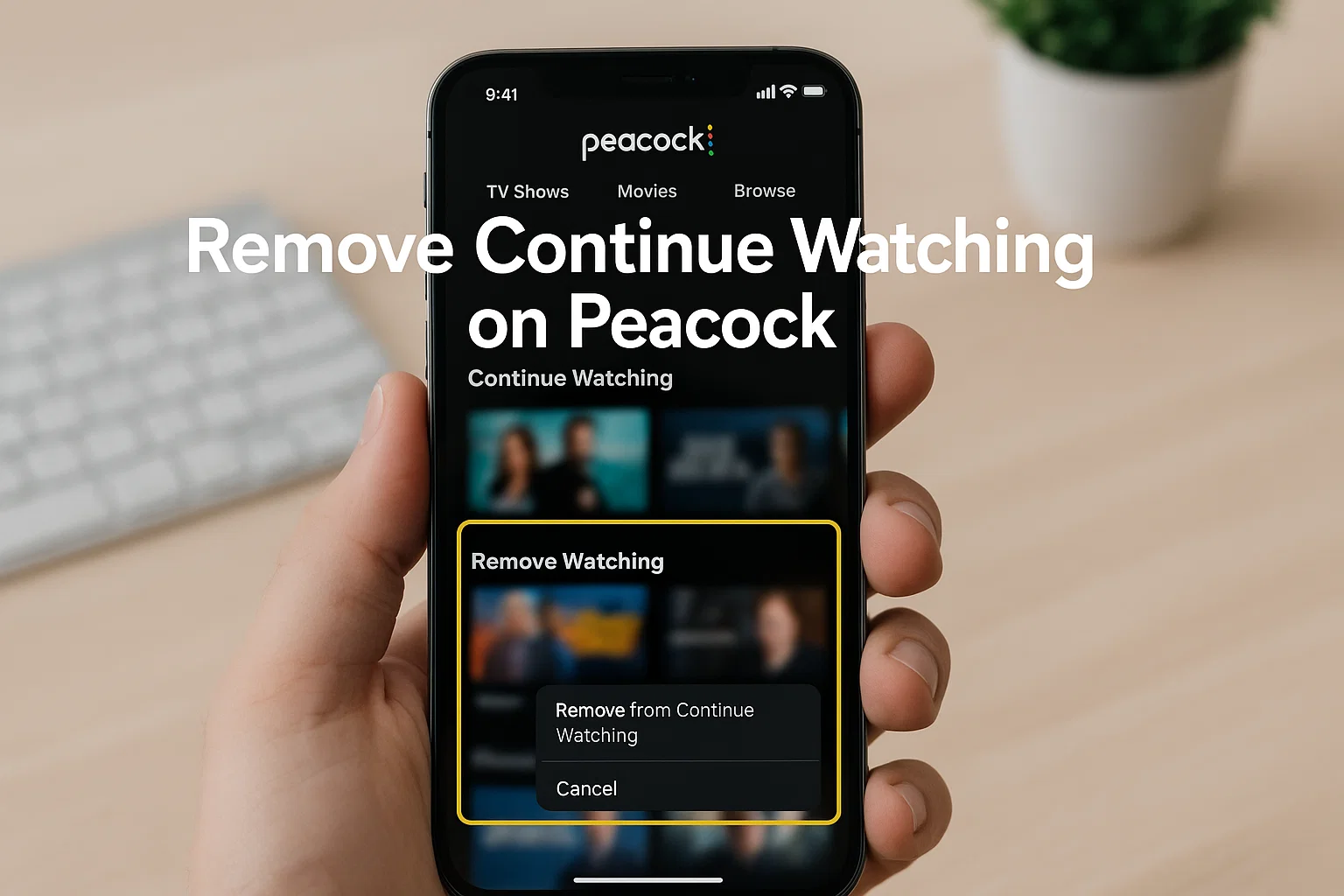
 If your Peacock app keeps showing old shows you don’t want anymore, you’re not alone. I’ve faced the same problem, and honestly, it looks messy seeing episodes you stopped watching months ago. The good news is simple: you can remove Continue Watching from Peacock on iPhone, but Peacock hides these options a bit. So you need to know where to tap and what actually works.
Let me break everything down in a clear way, using the exact steps that work right now in 2026, because Peacock updates its app and many old tutorials no longer work. Whether you want to delete a show, clear a movie, or stop Peacock from autoplaying the next episode, you’ll find all the answers here.
What Is the Fastest Way to Remove Continue Watching From Peacock on iPhone?
The quickest way is this:
Open the show → Play for a few seconds → Tap the three dots → Mark Episode as Watched.
Peacock will immediately remove it from Continue Watching.
Here’s the expanded version so you don’t get stuck:
- Open Peacock on your iPhone
- Scroll to Continue Watching
- Tap the show you want to remove
- Play it for 5–10 seconds
- Tap the … (More Options) button
- Choose Mark as Watched or Remove From Continue Watching
- Go back to the Home screen and check
If the option doesn’t show up, don’t worry there are additional methods below that always work.
Why Doesn’t Peacock Allow a Direct “Clear Continue Watching” Button?
Here’s the truth: Peacock doesn’t give a one-tap “clear all” button like some apps.
They want to keep your watching progress synced across devices.
But yes, it’s still annoying.
That’s why you need to use a mix of hidden actions, app tricks, and account-level resets.
Let’s go through each one.
Can You Remove Continue Watching on Peacock? (Yes, With These Working Methods)
A lot of people search “Can you remove continue watching on Peacock?” because the app doesn’t make it obvious.
Yes, you can, and here are all the working methods in 2026.
Method 1 – Mark the Episode or Movie as Watched (Most Reliable)
This works 90 percent of the time.
- Open the show
- Start playing the last episode
- Let it run until the final few seconds
- Peacock thinks you completed it
- The show disappears from Continue Watching
Try this if the remove button doesn’t appear.
Method 2 – Use the Hidden “More Options” Menu
Some titles show a hidden menu depending on your region.
Here’s how:
- Select the title from Continue Watching
- Tap …
- Choose Remove From Continue Watching
This only appears on certain shows, but when it shows up, it works instantly.
Method 3- Remove Continue Watching From the Browser (100% Working Trick)
This trick works even when the iPhone app misbehaves.
- Open a browser (Chrome or Safari)
- Go to peacocktv.com and sign in
- Open My Account
- Tap Viewing Activity
- Remove titles from Recently Watched
- Refresh your iPhone app
Because the browser shows more controls, the changes sync instantly.
Method 4 – Clear Peacock App Cache on iPhone
If your Continue Watching list refuses to update:
- Open Settings on your iPhone
- Scroll to General
- Tap iPhone Storage
- Find Peacock
- Tap Offload App
- Reinstall Peacock
This doesn’t delete your account, only the app’s temporary files.
After reinstalling, Continue Watching usually refreshes.
Method 5 – Sign Out of All Devices (Account Reset Fix)
Peacock stores watch history on all devices.
If something glitches, clear it by signing out everywhere.
Steps:
- Visit peacocktv.com
- Log in
- Go to Account → Devices
- Select Sign Out of All Devices
Reopen Peacock on your iPhone and you should see an updated Continue Watching list.
Method 6 – Create a Separate Profile (If You Share Your Account)
Sometimes someone else in your home watches a show for 30 seconds
and ⟶ boom, it appears in your Continue Watching.
Creating a profile solves this permanently.
- Open Peacock
- Tap your profile icon
- Choose Add Profile
- Select a color and name
- Switch to the new profile
Fresh start. No history. No clutter.

How to Remove Shows From Peacock Continue Watching (Proven Methods)
Reddit users discovered a few hacks that work even when nothing else does.
Reddit Method A Fast Forward to the Last Minute
Play the show → skip to the final 20 seconds → let it finish → it disappears.
Reddit Method B Turn On Subtitles Trick
Some users say enabling subtitles triggers episode refresh.
It’s weird, but it works for a few titles.
Reddit Method C Delete the Entire Season Progress
This only works on the web version.
- Open the browser
- Go to the show
- Click Season Progress
- Remove the entire season
How Do I Stop Continuous Play on Peacock? (Autoplay Fix)
If you’re tired of Peacock automatically starting the next episode,
you can turn off autoplay from your iPhone.
Here’s how:
- Open Peacock
- Tap your profile icon
- Go to Settings
- Tap Playback Settings
- Turn off Autoplay
- Reopen the app
This doesn’t remove titles, but it stops Peacock from loading more episodes into your history.
Why Do Shows Keep Returning After You Remove Them?
Sometimes Peacock adds them back because:
- The app didn’t sync yet
- Another device still has the show cached
- Your Wi-Fi was disconnected when you removed it
- You started an episode by mistake again
- Profiles got mixed between users
If this keeps happening to you, do this combo:
Remove the show → Sign out of all devices → Reinstall Peacock on iPhone.
This resets everything clean.
How to Remove Continue Watching From Peacock on iPhone
| Action | Works On | Difficulty | Notes |
|---|---|---|---|
| Mark as Watched | iPhone | Easy | Best for single shows |
| Fast-forward to last minute | iPhone | Easy | Works on stubborn episodes |
| Remove on browser | iPhone/Web | Medium | Most reliable method |
| Clear app cache | iPhone | Easy | Fixes syncing issues |
| Sign out of all devices | Web | Medium | Works after profile glitches |
| Create new profile | iPhone | Easy | Best long-term fix |
Can You Completely Clear Peacock Continue Watching?
Officially, Peacock doesn’t give a “Clear All” option.
But yes, you can clear it manually using:
- Mark as Watched
- Device sign-out resets
- Browser viewing activity reset
With these combined, you can fully wipe the list.
Does Deleting Peacock App Delete Continue Watching?
No.
Your watch history is linked to your account, not your phone.
Deleting the app won’t remove anything unless:
You sign out of all devices before reinstalling.
That’s the only way to force a full refresh.
Why Does Peacock Make This So Complicated?
Honestly, they want to track progress across devices because most users switch between:
- iPhone
- TV
- Laptop
- Tablet
So they don’t want you to lose progress by mistake.
But for users who love a clean interface, it feels frustrating.
That’s why all the tricks above exist.
FAQs – Quick Answers
Can you remove a show from Continue Watching?
Yes. Use Mark as Watched or remove it from the browser.
How do I remove Continue Watching from Peacock on iPhone?
Open the show → Play a few seconds → Tap More Options → Mark as Watched.
How do I stop continuous play on Peacock?
Go to Playback Settings → Turn off Autoplay.
Why does Peacock not remove shows immediately?
Your app may need a sync or device refresh.
So What Should You Do Now?
If you want the fastest solution, do this:
Play the last few seconds of the show → Mark as Watched → Refresh the app.
For stubborn shows, use the browser method and your list will look clean again.
If you constantly share your account, create a new profile and enjoy a clutter-free Peacock forever.

Muhammad Nawaz, tech guru & gaming aficionado. Your go-to for mobile news, gaming updates & expert blogging tips.