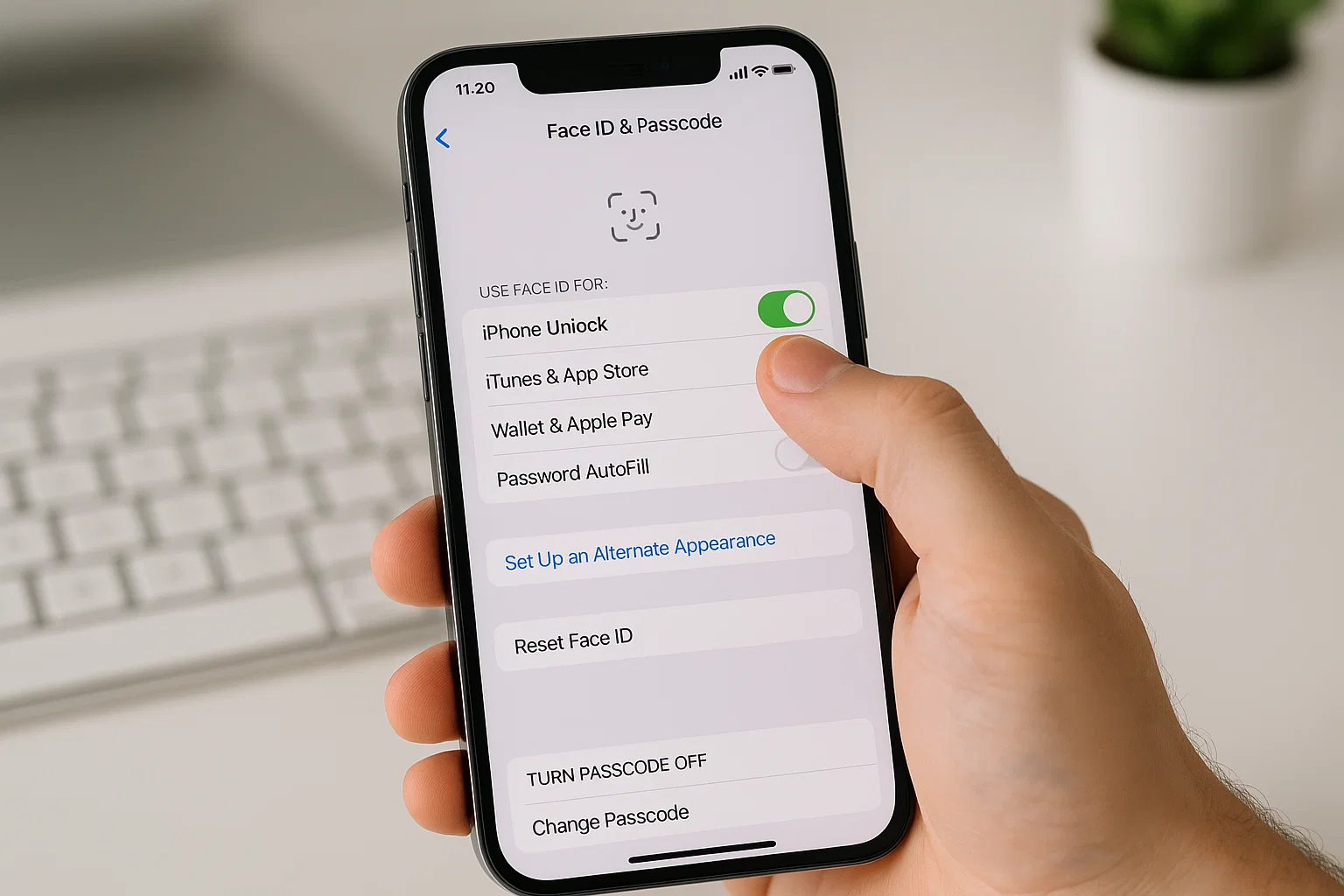
 You probably searched this because your iPhone keeps asking for Face ID at the wrong time, or maybe you shared your phone with someone and now you want to switch back to passcode only. Whatever the reason, here’s the simple answer upfront. To remove Face ID on an iPhone, you just go into Settings, open Face ID & Passcode, enter your device passcode, and tap the option to reset or disable Face ID completely. After that, your iPhone will stop scanning your face and will use only the passcode.
That’s the quick version. Now let’s slow down a bit and go through everything properly, step by step, in normal human language so you don’t get confused halfway and think your phone is acting smart on its own.
I’ve helped a lot of people fix their iPhone unlock settings, and honestly, most users don’t even know half the features hidden inside Face ID settings. So this guide clears the air for beginners, parents, kids, older users, and anyone who just wants a clean, simple explanation without the complicated Apple English.
Let’s start with the main thing you came for: removing Face ID safely.
What’s the Easiest Way to Remove Face ID on iPhone?
The fastest way is only four steps.
Here’s the quick route again so it sticks in your mind.
Steps to remove Face ID
- Open Settings
- Tap Face ID & Passcode
- Enter your passcode
- Tap Reset Face ID
That’s it. Your face data is wiped instantly.
Now let me explain what each step looks like with a quick visuals-style breakdown, so you know you’re tapping the right place.
Screenshot-style explanation
When you open Settings, scroll a little until you see a menu named Face ID & Passcode. It has a small green face icon beside it. Tap it and your phone will show a keypad asking for your passcode.
Once you enter the passcode, you’ll land on a page full of options like Use Face ID For, Attention Awareness Features, and Set Up an Alternate Appearance. Near the top, you’ll see something called Reset Face ID. It’s written in red text.
You tap that once.
The Face ID system is deleted right away.
Your iPhone will stop using your face for unlocking.
If you ever want it back, just tap Set Up Face ID again.
How Can I Get Rid of Face ID Completely?
Sometimes people don’t just want to reset Face ID. They want to fully switch it off so the phone never tries to scan their face again. Maybe it feels uncomfortable, maybe it drains too much battery in low light, or maybe you simply prefer the old passcode method.
Here’s what you do.
Step-by-step (Disable Face ID Everywhere)
- Go to Settings
- Tap Face ID & Passcode
- Enter passcode
- Turn off every toggle under Use Face ID For
You’ll see options like
Unlock iPhone, Apple Pay, iTunes & App Store, Password AutoFill.
Turn all of them off.
After this, your iPhone behaves like a normal passcode-only phone.
Screenshot-style view
On that page, you’ll notice a list of small green switches. When they’re green, Face ID is active for those tasks. When you tap them and they turn white or grey, Face ID is off.
Turning all of them off stops every Face ID function.
It’s simple, but people often miss this because they think resetting Face ID is enough. Resetting only removes your face data. Disabling the toggles stops future scanning.
Both together = Face ID fully removed from your phone.
How to Disable Facial Recognition on iPhone Without Resetting?
Maybe you don’t want to delete your face data, you just want to temporarily stop Face ID from working.
This comes in handy if:
You’re wearing a mask.
Your phone keeps misreading your face.
You want quick passcode unlock only.
Or you’re lending your phone to a friend.
Here’s the shortcut method.
Quick temporary disable
Press and hold the power button + either volume button at the same time.
Keep pressing for one second.
Your phone will show the Emergency SOS screen.
After that, Face ID stops until you enter your passcode.
This is one of the most useful hidden tricks Apple doesn’t explain properly.
It protects your privacy fast and easy.
What Can Disable Face ID Automatically?
Many people think their Face ID is broken, but in reality, the phone disables it automatically under specific conditions. Apple does this for security and safety.
Here are the common reasons Face ID stops working temporarily.
1. Your phone restarted
After a reboot, Face ID won’t work until you enter the passcode.
2. You didn’t unlock your phone for 48 hours
The system forces a passcode for security.
3. Five failed face attempts
When a lot of wrong faces try to unlock the phone, Face ID locks itself.
4. You turned off the screen with the power button
In certain cases, your phone will demand a passcode next time.
5. Battery below a critical level
Extreme low power sometimes disables scanning.
6. Face covered or dirty camera
Mask, sunglasses, dirty lens, or low lighting may confuse Face ID.
A lot of people panic at this point, thinking the sensor is damaged.
But most of the time, the phone is just asking for a manual unlock.
Once you unlock with a passcode, Face ID works again.
How to Skip Face ID and Go Straight to Passcode?
Sometimes you just want to unlock your iPhone quickly without holding the phone at a weird angle trying to scan your face. Maybe you’re lying down, wearing a cap, or half asleep.
Here’s the easy skip method.
Method 1: Swipe Up
When the iPhone tries to scan your face, just swipe up on the lock screen.
This immediately opens the passcode keypad.
Method 2: Cover the Face ID sensor
If you cover the top part of your screen with your hand or thumb, the phone won’t be able to scan and will show the passcode page.
Method 3: Use the side-button shortcut
Press the power button once.
Swipe up again.
Passcode screen appears.
Screenshot-style
On the lock screen, at the bottom, you see the small line handle.
Swipe it up.
The keypad pops up even if Face ID was trying to read your face.
This trick helps a lot when Face ID keeps failing.
How to Remove Face ID When You Forgot Your Passcode?
This one is tough, but many people ask it because they turned on Face ID years ago and forgot the old passcode. Sadly, Apple doesn’t allow you to remove Face ID without passcode for security reasons.
But you still have two options.
Option 1: Use Apple ID to reset the device
If you enter the wrong passcode too many times, the phone shows a small button called Forgot Passcode.
Tap it.
Enter your Apple ID.
Reset the device.
This wipes everything including Face ID.
Option 2: Use iTunes or Finder
Connect your iPhone to a computer.
Enter recovery mode.
Restore the device.
This also removes Face ID, but your data will be erased.
There’s no bypass method.
If Apple allowed it, anyone could remove Face ID from someone’s stolen iPhone.
Why Do People Remove Face ID on iPhone in the First Place?
I’ve noticed common reasons while helping users:
Some don’t like facial recognition technology.
Some think it consumes battery.
Some share phones with family members.
Some wear masks daily.
Some have jobs where face coverings are required.
Some just prefer the old passcode habit.
There’s no right or wrong reason.
Your phone, your comfort.
I always say this:
Technology should adjust to you, not the other way around.
Face ID Not Working? Maybe You Don’t Need to Remove It
Before you completely shut down Face ID, try these small fixes.
Most users don’t know they exist.
Fix 1: Clean the TrueDepth camera
The little sensors at the top of your screen get dirty easily.
Fix 2: Add an alternate appearance
Go to Face ID & Passcode.
Tap Set Up Alternate Appearance.
This helps when you look different at home vs outside.
Fix 3: Enable mask support
Modern iOS versions support Face ID with a mask.
Turn it on in the same menu.
Sometimes these small tweaks save you from disabling the whole feature.
Is It Safe to Remove Face ID on iPhone?
Absolutely.
Removing Face ID does not harm the phone.
It doesn’t affect your apps.
It doesn’t reduce performance.
You only lose the convenience of unlocking with your face.
But if you rely heavily on Apple Pay, App Store purchases, or password autofill, you’ll need to enter passwords manually.
It’s a minor inconvenience but nothing major.
Can Someone Still Access My Saved Data After I Remove Face ID?
No.
Once you remove Face ID, all biometric face data is deleted instantly.
No one can restore it.
Not even Apple.
Not even with backups.
It doesn’t store the image of your face, only a mathematical representation, and that also gets wiped.
Your privacy stays safe.
A Quick Summary Table for Fast Readers
Here’s a simple table for easy memory.
Setting What It Does How to Use It
Reset Face ID Deletes all face data Settings Face ID & Passcode Reset Face ID
Disable Face ID Turns off unlock scanning Turn off all toggles under Use Face ID For
Temporary Disable Stops face scanning until passcode Hold power + volume
Skip Face ID Goes straight to passcode Swipe up on lock screen
Fix Face ID Helps if scanning fails Clean camera, add alternate appearance
Final Wrap-Up: Should You Remove Face ID or Not?
Here’s my honest take.
If Face ID annoys you, remove it.
If it keeps failing, reset it.
If you prefer the old-school unlocking, disable it.
If you share your phone with someone and don’t want surprises, switch to passcode.
And if you ever change your mind, the setup takes less than a minute.
I’ve seen hundreds of users who removed Face ID, enjoyed life for a few months, and then turned it back on after updates improved accuracy. So nothing is permanent.
You’re free to adjust anytime.

Muhammad Nawaz, tech guru & gaming aficionado. Your go-to for mobile news, gaming updates & expert blogging tips.