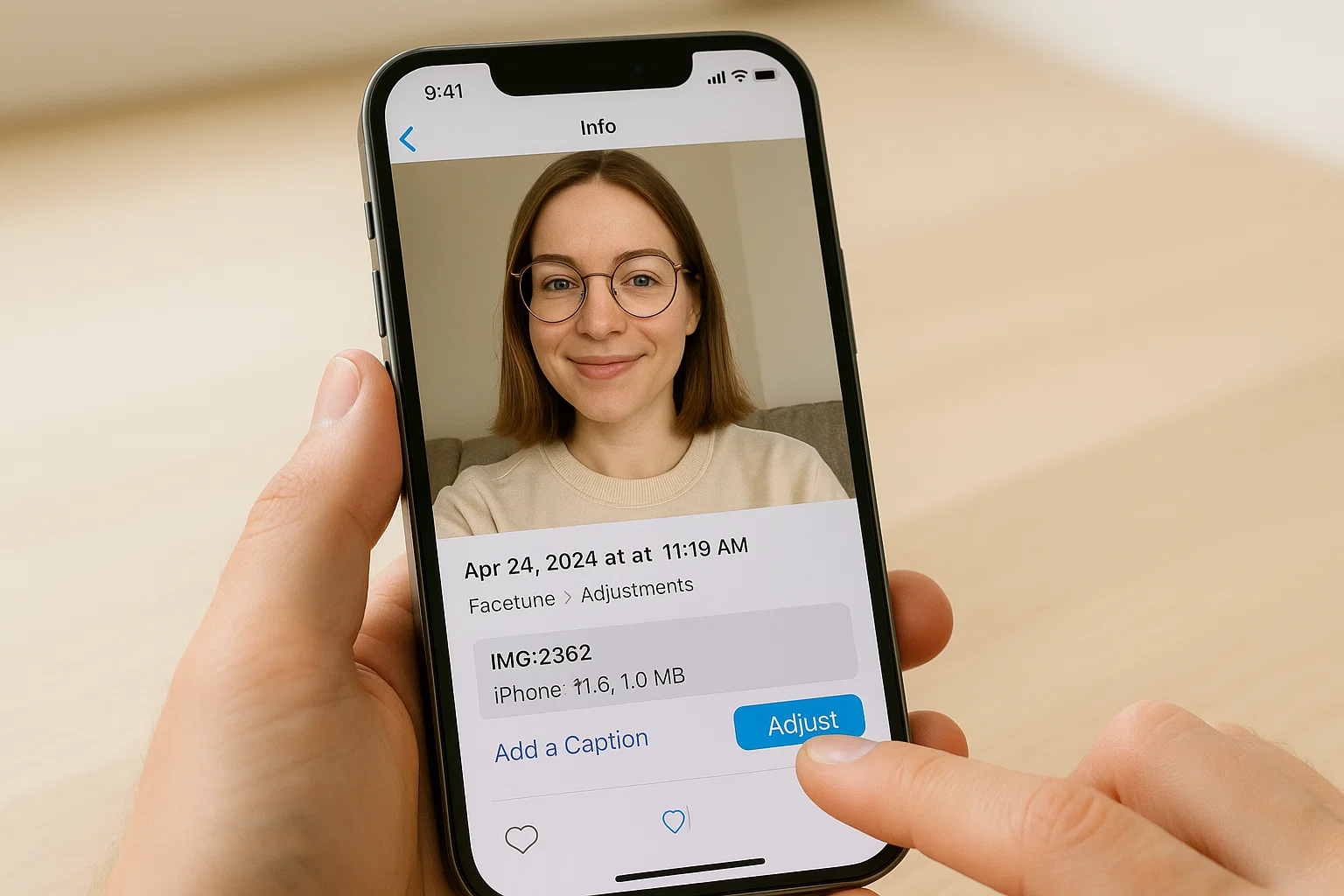
 If you’re trying to figure out how to remove Facetune from photo info on your iPhone, here’s the straight answer: you can hide or remove Facetune tags by deleting metadata, saving the photo as a screenshot or new copy, using iPhone’s built-in “Remove Location and Info” options, or by reverting the edited version. Each method works for a different situation, depending on how deep the edits are.
Let me break it down in a way that actually helps, especially if you don’t want people to see that a picture was edited or filtered before you share it.
I’ve spent years playing with mobile editing apps, privacy tools, and iPhone settings, and the truth is: your iPhone gives you more control than you think. You just need to know where everything is hiding.
Here’s what really works.
What Is Facetune Info and Why Does Your iPhone Show It?
Facetune adds extra details to your photo file. This information can include:
- The editing app’s name
- A hidden edit signature
- Metadata (EXIF data)
- Adjustments like smoothing, whitening, structure changes, etc.
When you tap the little Info (i) button on your iPhone, sometimes it shows:
- “Edited in Facetune”
- Files → “Adjustments applied”
- Or metadata revealing the app used
If you’re sharing photos with friends, family, or even online, it’s understandable if you don’t want that information showing.
Good news you can remove it.
But the trick is choosing the right method.
How Do I Remove Facetune Metadata From a Photo on iPhone?
The quickest and cleanest way is to remove metadata before saving or sharing the photo.
Here’s what works without breaking image quality.
Method 1 Save the Photo as a New File
This is one of the easiest ways to clear metadata.
Steps:
- Open the edited photo.
- Tap the Share button.
- Choose Save to Files → pick any folder.
- Now go back and open the file again.
- Tap Share → Save Image.
This fresh image comes WITHOUT the original metadata.
iPhone treats it like a new photo.
How Do I Stop My iPhone From Showing Photo Info?
Your iPhone is designed to show info automatically, but you can control what gets shared.
Turn Off Location Sharing for Photos
- Go to Settings
- Tap Privacy & Security
- Tap Location Services
- Choose Camera
- Set to Never
New photos won’t include location metadata anymore, which helps remove unwanted info.
When Sharing Photos
Whenever you share a photo:
- Tap Share
- Tap Options at the top
- Turn off Location
- Turn off All Photos Data
This stops the receiving person from seeing details.
Can You Remove All Metadata From a Photo on iPhone?
Yes, and iPhone makes it pretty simple.
Here’s how to wipe everything clean.
Method 2 Use “Remove All Metadata” Before Sharing
- Open the photo
- Tap Share
- Tap Options
- Turn off:
- Location
- All Photos Data
This removes:
- Camera settings
- Editing info
- App history
- Custom tags
- GPS location
It’s clean, fast, and works well for Facetune info.
How Do You Remove Facetune Edits From the Info Section?
If your photo says “Edited,” “Adjusted,” or looks like it has hidden Facetune layers, you can try this.
Method 3 Revert the Image (If Edited in Photos)
iPhone keeps track of all edits. Sometimes a Facetune export triggers the iPhone editor to mark it as edited.
Here’s how to reset the “Edited” tag:
- Open the photo
- Tap Edit
- Tap Revert
- Tap Revert to Original
Important:
This works ONLY if the photo was edited through Apple Photos or was exported in a way that iPhone thinks it has edit layers.
If Facetune flattened it, then this method won’t remove the name but the next one will.
How Do I Remove the Watermark From Facetune?
Facetune sometimes saves images with a faint watermark or text effect.
Removing it depends on what your photo looks like.
Method 4 Crop Out the Watermark
If the watermark appears in a corner:
- Open photo
- Tap Edit
- Select Crop
- Adjust frame
- Save
Quick and clean.
Method 5 Use “Markup” to Cover It
You can cover it using a solid color or shape.
Not perfect, but useful for social media posts.
Method 6 Use the “Clone” or “Healing” Tool in iOS
In 2025, iOS’s built-in tools are more powerful.
- Tap Edit
- Choose Retouch
- Clone a nearby texture
- Cover the watermark
How Do I Completely Hide Facetune From Photo Info? (Best Overall Method)
If you want a 100% clean file with:
- No Facetune tag
- No metadata
- No “Edited” status
- No app fingerprint
- No traces of the original version
Here’s the best trick.
Method 7 Take a Screenshot of the Photo
This gives you a brand-new photo with ZERO metadata.
Steps:
- Open the photo full screen
- Make sure nothing is covering it
- Take a screenshot
- Crop out the iPhone frame
The screenshot saves as a totally fresh image file:
- No edits
- No app name
- No hidden info
This method is extremely popular because it works every time.
Method 8 Export the Photo Through a Third-Party Cleaner App
There are apps that remove EVERYTHING:
- Metapho
- ViewExif
- Exif Metadata Cleaner
- iVerify (privacy focus)
Most of these let you:
- Remove creator data
- Delete app signatures
- Wipe editing timestamps
- Make a 100% clean photo
If you edit a lot or share photos online, using one of these regularly makes life easier.
Which Method Should You Use? (Quick Comparison Table)
This table helps you choose the right fix.
| Goal | Best Method | Why It Works |
|---|---|---|
| Remove Facetune name | Save to Files + re-save | Creates a clean new copy |
| Remove all metadata | Share → Options → disable all | Removes hidden info |
| Completely clean photo | Screenshot method | Zero metadata |
| Remove watermark | Crop / Retouch | Fast and simple |
| Stop future photo info | Turn off data sharing | Prevents metadata |
Pick the one that fits your situation.
Why Does iPhone Show Editing Info in the First Place?
Apple designed Photos to be honest.
If a picture is edited, the phone tries to keep track so you can undo or re-edit later.
Facetune edits sometimes get detected as:
- Filters
- Pixel adjustments
- Retouch layers
So the iPhone triggers the “Edited” tag or metadata fields.
You can remove them they’re not permanent.
Will Other People See Facetune Info When I Share a Photo?
Yes, if:
- You share “All Photos Data”
- You send through AirDrop with metadata on
- You upload without removing EXIF info
No, if:
- You disable sharing metadata
- You use Save to Files → Save Again method
- You screenshot the image
Most apps like WhatsApp and Facebook automatically remove metadata, but iMessage does NOT.
That’s why cleaning your image before sharing is the safest choice.
Does Facetune Leave a Hidden Signature in Photos?
Facetune used to save images with a clear signature.
In newer versions, the signature is not visible to the human eye, but some metadata still hints at the editing app.
The good thing is:
iOS 17 and iOS 18 handle metadata differently, and cleaning the file is easier now.
Best Privacy Tips to Avoid Facetune Info in the Future
Here’s how you stay safe going forward.
1. Use Facetune’s “Save As New File” option
This reduces editing layers.
2. Disable Location in Camera
Saves cleaner files.
3. Always remove data before posting
A quick “Share → Options → Off” is enough.
4. Use Retouch apps that don’t leave footprints
Some apps hide editing details better than others.
5. Never send original photos if you’re sensitive about metadata
Send:
- Screenshots
- Saved copies
- Exported clean files
Your privacy stays intact.
Frequently Asked Questions:
Does deleting an edited photo also remove app info?
Only if the app stored layers in the Photos app. Most Facetune edits are flattened, so the info stays unless you clean it.
Can I remove all metadata permanently?
Yes, through Share Options or metadata remover apps.
Does AirDrop share metadata?
Yes unless you manually turn it off.
Does screenshotting reduce quality?
Slightly, but still very good for social media.
Final Thoughts: The Easiest Way to Remove Facetune Info
If you want the fastest solution that works every single time:
Take a screenshot or save the photo to Files and then re-save it.
These two methods remove almost everything app name, metadata, edit tags, everything.
Your photo becomes a clean, fresh file.

Muhammad Nawaz, tech guru & gaming aficionado. Your go-to for mobile news, gaming updates & expert blogging tips.