I’ve been helping everyday iPhone users fix small but annoying iOS problems for years, and one question keeps coming back in 2026: how to remove the search bar on iPhone.
Here’s the quick answer.
You can’t fully delete the search feature on iPhone, but you can hide the search bar from your Home Screen, Today View, and Lock Screen in just a few seconds using Settings. Apple made a few small changes in recent iOS updates, but the method still works. 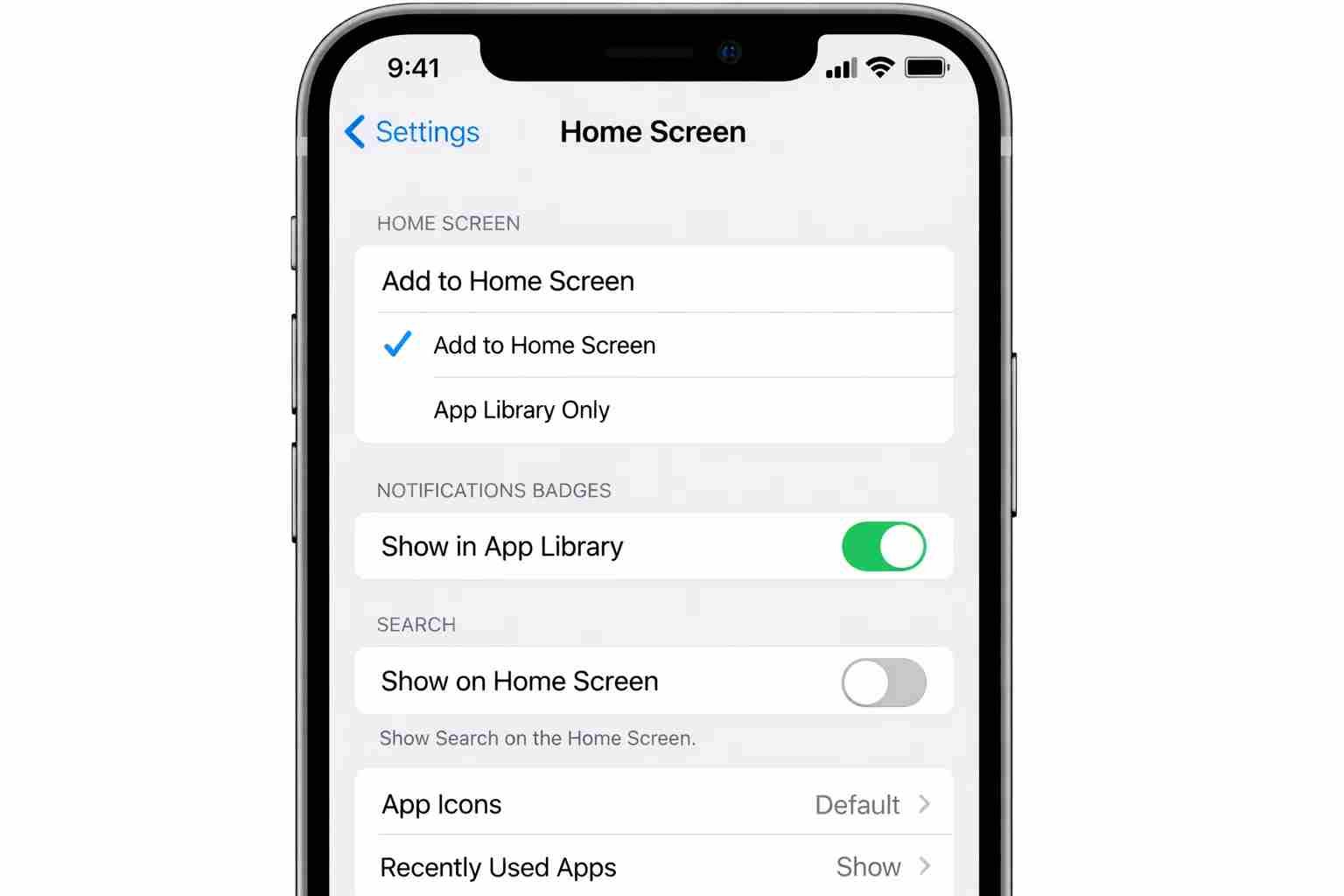
Now let me walk you through it clearly.
How to Remove the Search Bar on iPhone Home Screen?
Direct answer:
Go to Settings → Home Screen → turn off “Show on Home Screen” under Search.
That’s it.
In iOS 17 and 18 (still same in 2026), Apple added a visible search button just above the dock. Some people like it. Many don’t.
Here’s exactly what to do:
- Open Settings
- Tap Home Screen
- Find Search
- Turn OFF Show on Home Screen
Once you switch it off, the search bar icon disappears immediately.
You can still swipe down to search. It just won’t sit there on your screen anymore.
How Do I Make My Search Bar Disappear Completely?
Let’s be honest.
You can’t fully remove Spotlight Search from iPhone because it’s built into iOS. But you can limit it heavily.
Here’s how to reduce it:
- Go to Settings
- Tap Siri & Search
- Scroll down
- Turn off:
- Show Suggestions
- Show in App Library
- Show on Home Screen
- Show When Sharing
This won’t delete search, but it makes it almost invisible in daily use.
Most users just want the bar gone from the Home Screen. That’s solved above.
How Do I Remove the Bar on My iPhone Lock Screen?
If you’re seeing the search option when swiping down from the Lock Screen, that’s Spotlight.
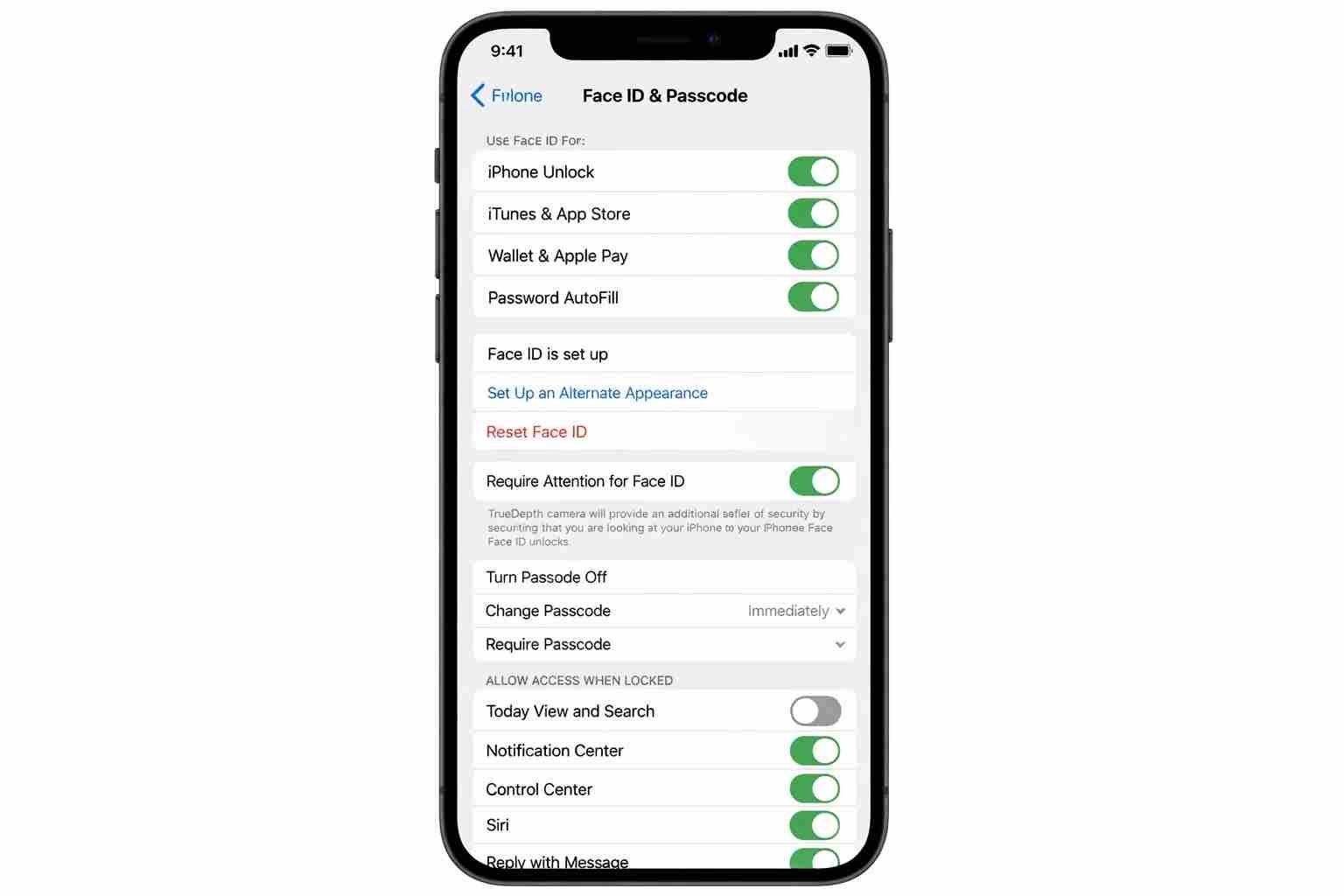
You can disable it like this:
- Open Settings
- Tap Face ID & Passcode
- Enter your passcode
- Scroll to Allow Access When Locked
- Turn OFF Today View and Search
Now when you swipe down on the Lock Screen, the search won’t appear.
Simple, right?
How Do I Remove a Search Bar on My Home Screen Widget Area?
Some users confuse the search bar with the Today View panel (the left swipe screen).
If you see search there:
- Swipe right from Home Screen
- Scroll to bottom
- Tap Edit
- Remove widgets you don’t want
- If needed, disable Today View from:
- Settings → Face ID & Passcode
- Turn off Today View
That clears the left panel clutter.
How Do I Clear Out the Search Bar on My iPhone?
Maybe your problem isn’t the bar. Maybe it’s the search history.
Here’s how to clear search suggestions:
- Go to Settings
- Tap Siri & Search
- Turn off Show Recent Searches
To reset Siri suggestions:
- Toggle Siri off
- Restart phone
- Turn Siri back on
That clears most stored search suggestions.
What If the Search Bar Is Still Showing?
If you updated iOS recently and the search button appeared again, try this:
- Restart your iPhone
- Check Settings → Home Screen again
- Make sure you’re running latest iOS version
Sometimes after updates, features reset to default.
Why Did Apple Add the Search Button Anyway?
Because most users search more than they scroll.
Apple found that people open apps by searching, not swiping through pages. So they added that button to make it faster.
Still, not everyone likes extra icons.
And that’s okay.
Final Thoughts
If you came here wondering how to remove the search bar on iPhone, now you know the truth:
You can’t erase search from iOS completely, but you can hide it from your Home Screen and Lock Screen in under a minute.
Most people just need that one toggle inside Home Screen settings.
Done.
No stress.

Muhammad Nawaz, tech guru & gaming aficionado. Your go-to for mobile news, gaming updates & expert blogging tips.