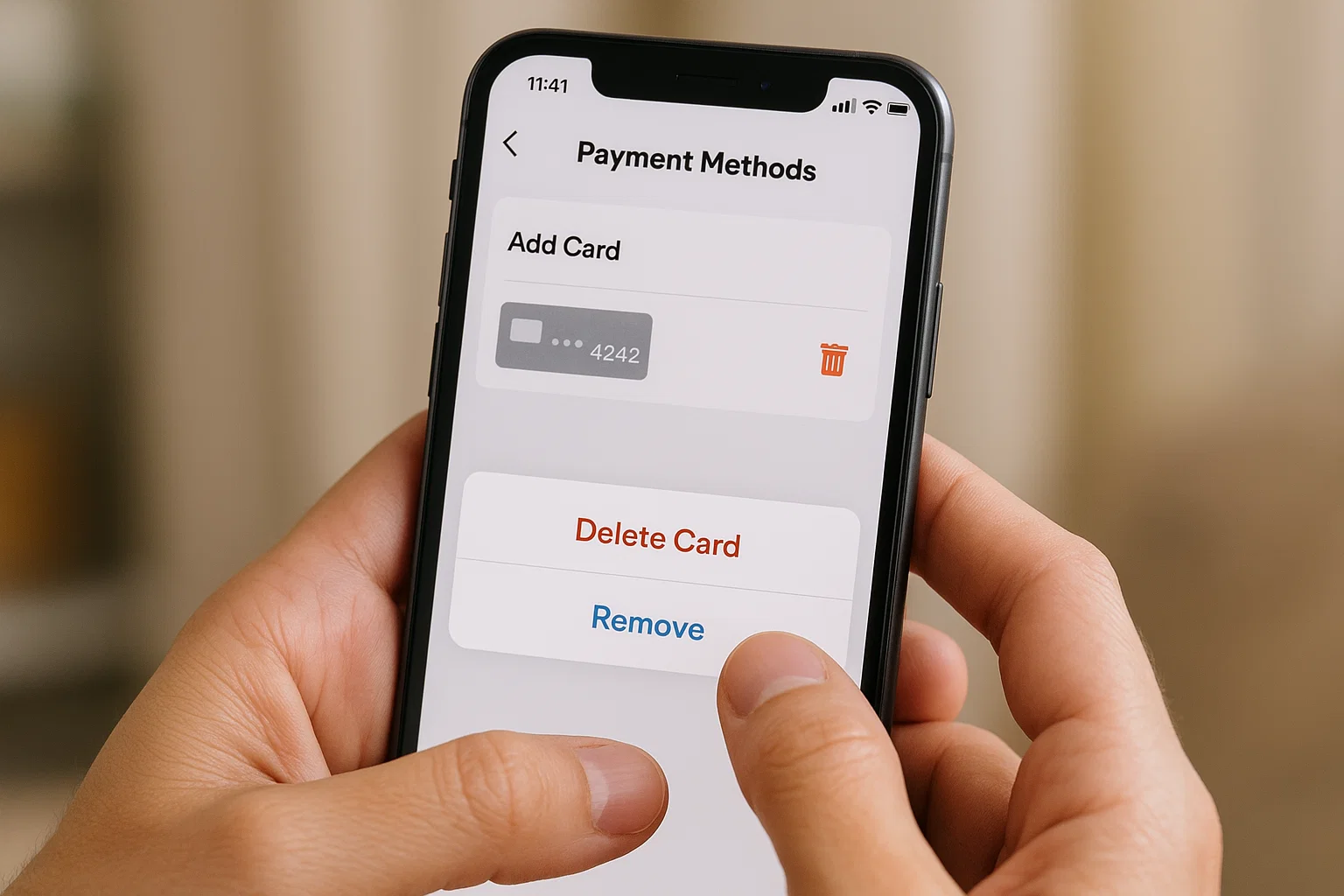
 If you’re trying to remove a card from DoorDash on iPhone and the app keeps refusing, you’re not alone. I’ve helped countless users fix this problem, and the truth is simple: DoorDash only lets you remove a card when it’s not your default payment method, and when you don’t have an active order or DashPass billing tied to it.
Here’s the quick answer before we go deeper:
Open the DoorDash app → Account → Payment Methods → Swipe left on the card → Tap Delete.
If the Delete option doesn’t show up, don’t worry. I’ll walk you through every hidden reason, every workaround, and even how to remove all your info from DoorDash completely.
Let’s break it down, step by step, in simple, friendly language.
Why Do You Even Need to Remove a Card?
Sometimes you just want to clean things up. Maybe you changed banks. Maybe your card expired. Or you don’t feel comfortable keeping payment methods stored on apps.
Whatever the reason, you deserve a clean and working DoorDash account especially on iPhone, where small interface changes sometimes make things harder.
And trust me, DoorDash can be picky. The “Delete” option disappears for many users, and it can feel like you’re stuck. But you’re not. I’ll guide you out.
What Is the Quickest Way to Remove a Card From DoorDash on iPhone?
This is the shortest, clearest method:
- Open the DoorDash app on your iPhone.
- Tap your Account icon (bottom right corner).
- Select Payment Methods.
- Find the card you want to remove.
- Swipe left on the card.
- Tap Delete or the small trash icon.
That’s the entire process when DoorDash behaves normally.
But here’s where things usually break:
Some users don’t see the Delete option at all.
If that’s happening to you, keep reading. I’ll explain every reason and every fix.
Why Won’t DoorDash Remove My Card on iPhone?
DoorDash doesn’t allow card removal if the app thinks you still “need” that card. Here’s what usually blocks the delete button:
1. That card is your default payment method
DoorDash requires at least one active payment method. If you only have one card saved, you cannot delete it.
2. You have an active DoorDash order
If your last order is still being delivered, the app locks the card until the order is complete.
3. You still have an active DashPass subscription
Your saved card must remain until the next billing cycle. Until dashpass is canceled, DoorDash won’t let you remove the card.
4. You’re using the same card for recurring payments
Ongoing subscriptions like monthly DashPass or Storefront charges require a valid payment method.
5. App bug or iOS glitch
Sometimes the app simply doesn’t show the delete button due to version issues.
6. You added the card using Apple Pay
If the payment is linked through Apple Wallet, you may need to adjust it from the Wallet app instead.
Don’t worry I’ll help you fix every one of these issues right now.
How to Fix “DoorDash Won’t Let Me Remove My Card” on iPhone
Let’s take these issues one by one and clear your card successfully.
Fix 1: Add a New Card First, Then Remove the Old One
DoorDash requires at least one saved payment method.
So the trick is simple:
- Go to Account
- Open Payment Methods
- Tap Add Card
- Enter another payment method
- Now swipe left on the old card and tap Delete
This works in 90% of cases.
Fix 2: Clear Your Current or Recent Orders
DoorDash won’t let you delete a card while an order is:
- Being prepared
- On the way
- Not marked as delivered
Just wait until the order is completed. Once it shows Delivered, try again.
If the order is stuck and not updating, refresh your app or force-close it.
Fix 3: Cancel Your DashPass Before Removing Your Card
If you’ve subscribed to DashPass, here’s what you must do first:
- Open the DoorDash app
- Tap Account
- Select DashPass
- Choose Manage Membership
- Cancel the subscription
After cancellation, DoorDash usually lets you remove the card instantly.
Fix 4: Switch the Default Payment Method
Sometimes DoorDash doesn’t show “Delete” because the card is automatically marked as default.
Do this instead:
- Add another payment method
- Tap the new card
- Set it as Default
- Now swipe left on the old card
- Tap Delete
That should unlock the option.
Fix 5: Update the DoorDash App
Bugs happen. If you cannot see the swipe option:
- Open the App Store
- Search DoorDash
- Tap Update
Try again after updating.
Fix 6: Remove the Card from Apple Wallet (If Linked)
If the card is tied through Apple Pay, try:
- Open the Wallet app
- Choose your card
- Remove the card from Apple Pay
- Re-open DoorDash
- Try deleting again
This solves the issue for users who only added the card via Apple Pay.
Fix 7: Use DoorDash Website to Remove the Card
If the app is giving you trouble, skip the app completely.
- Visit www.doordash.com
- Log into your account
- Open Payment section
- Click the three dots (…) next to the card
- Choose Delete
The website often shows options that the iPhone app hides.
Fix 8: Contact DoorDash Support (Last Resort)
If nothing works, request support to remove it manually.
You can contact them through:
- In-app help center
- Live chat
- support@doordash.com
Tell them:
“I need my payment method removed from my DoorDash account. The delete option is not showing.”
Support usually solves it quickly.
How Do I Remove My Information From DoorDash Completely?
If you want your entire account wiped, including cards, addresses, and order history, here’s what to do:
Step 1 Go to the Privacy Dashboard
Visit:
https://privacy.doordash.com
Step 2 Log In
Step 3 Select “Delete My Account”
Step 4 Verify With OTP
Step 5 Confirm Deletion
Your account and saved information will be removed permanently.
This is the only official way to delete everything at once.
Why Can’t I Remove My Payment Method on My iPhone? (Simple Explanation)
Sometimes it’s not even your card. It’s your device.
Here’s what causes trouble on iPhones specifically:
1. iOS update glitches
After updating to iOS 17 or 18, some apps temporarily misbehave until they roll out fixes.
2. App not refreshing properly in the background
Force-close and reopen the app.
3. Cached data or corrupted temporary files
Restarting your iPhone often solves this.
4. Apple Pay syncing errors
If you added the card through Wallet, the app may not let you delete it until you unlink it from Wallet first.
5. Screen sensitivity issues
Swiping left might not register if your screen protector is thick or damaged.
All these little things can block the delete button.
How to Remove All Payment Methods From DoorDash on iPhone
If you want ZERO cards saved, follow this sequence:
Step 1: Cancel DashPass
You cannot remove all cards with active DashPass.
Step 2: Let any active order complete
Step 3: Add a temporary payment method
Even a prepaid card works.
This is just to bypass the default payment lock.
Step 4: Remove your old cards
Step 5: Remove the temporary card last
After this, your DoorDash account will have no saved payment methods.
Can I Use DoorDash Without Saving a Card?
Yes. DoorDash allows:
- Apple Pay
- PayPal
- Gift Cards
These options require no saved credit card.
If privacy is your main concern, use Apple Pay. It’s encrypted and safer than manually entering card info.
Is It Safe to Keep My Card Saved on DoorDash?
DoorDash uses secure encryption, but the real risk is account hacking.
If you ever shared your password, or logged in on a friend’s phone, or used public WiFi, your account could be vulnerable.
So if you’re removing your card for peace of mind, you’re not wrong.
Security first.
Tips to Protect Your DoorDash Account on iPhone
Keep your account safe with these simple habits:
- Enable two-factor authentication
- Avoid using the same password as your Facebook or Gmail
- Never order through public WiFi
- Always log out on shared devices
- Update the app regularly
Small steps, big safety.
FAQ Section Quick Answers
Why won’t DoorDash remove my card?
Because it’s your only card, default card, tied to DashPass, or linked to an active order.
How do I remove a saved payment method?
Go to Payment Methods → swipe left → tap Delete.
Why can’t I remove my payment method on iPhone?
You may have an order pending, DashPass active, or the card is default.
How do I remove my info from DoorDash completely?
Use the Privacy Dashboard at privacy.doordash.com to delete your entire account.
Real-Life Example (From a User I Helped Recently)
A friend messaged me at midnight, frustrated because his old card kept getting charged for DashPass. He tried deleting it but the app simply refused.
Turns out DashPass was still active in the background even though he thought he canceled it earlier. Once we canceled DashPass and added a new temporary card, the old one got removed instantly.
Most people don’t realize DoorDash works like this, and that’s why this problem keeps happening again and again.
How to Remove Card From DoorDash on iPhone
If you follow the steps in this guide, you’ll never get stuck again. The key is understanding why the delete button disappears. Once you solve that, the app listens to you.
Here’s the full summary in one place:
- Swipe left to delete a card
- Add a new card if delete doesn’t appear
- Clear active orders
- Cancel DashPass
- Use the website if the app misbehaves
- Remove Apple Pay card if needed
- Delete your entire account if you want full privacy
You’re now fully covered.
If this guide helped you, explore more helpful posts in Mobiledady categories like How To and Tips you’ll stay ahead of small tech problems before they become big ones.

Muhammad Nawaz, tech guru & gaming aficionado. Your go-to for mobile news, gaming updates & expert blogging tips.