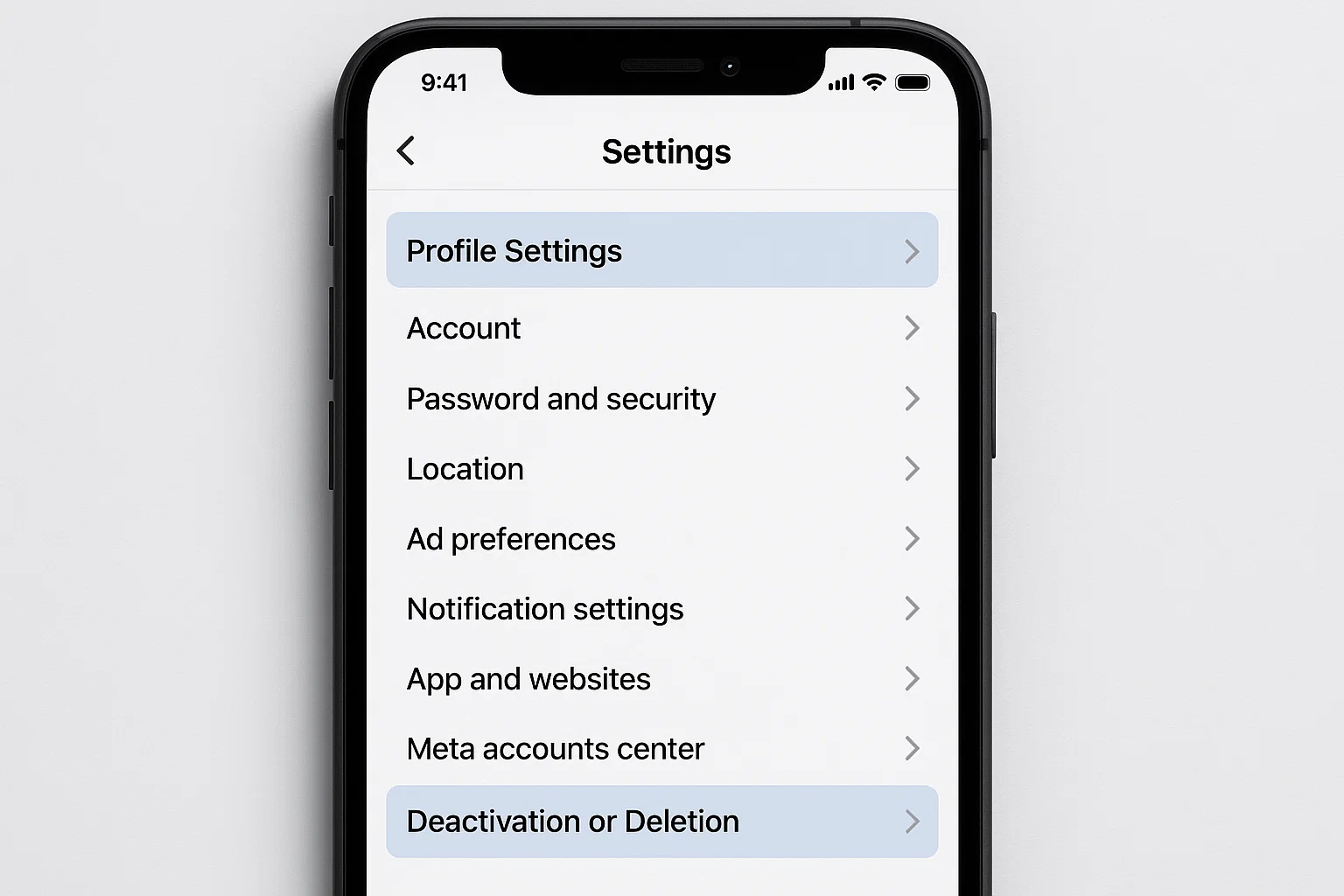
If you want a quick answer: you can remove a admin from Facebook page easily by going to Page Settings → Page Access → selecting the person → and clicking “Remove Access.” That’s it. No complicated process.
Now let me explain it properly, because Facebook keeps changing things, and honestly… it can feel confusing the first time.
This guide is updated for 2026 and based on real usage, not theory.
Why would you even remove an admin from a Facebook page?
Short answer: control.
Long answer… sometimes things go wrong.
Maybe:
- A team member left your business
- You hired someone and now don’t trust them
- Someone has full control and you want it back
I’ve seen people lose entire pages just because they didn’t manage admin roles properly. So yeah, this matters more than you think.
How do I remove admins from my Facebook page?
Here’s the exact step-by-step method (latest Facebook layout):
Step 1: Open your Facebook Page
Go to your page. Make sure you’re logged in as an admin.
Step 2: Go to Settings
On the left side, scroll down and click Settings
Step 3: Click “Page Access”
You’ll see a section called Page Access or sometimes New Pages Experience
Step 4: Find the admin
Look under:
- People with Facebook access
- Or Business Account access
Step 5: Click on the person
Tap their name.
Step 6: Remove access
Click Remove Access
Enter your Facebook password to confirm.
Done.
That person is no longer an admin.
How do I remove someone from my Facebook page completely?
This is slightly different.
Removing admin = removing control
Removing someone = removing all roles
Here’s how it works:
- If they are admin → remove access (as above)
- If they are editor/moderator → same method
- If they just like the page → you can ban them from settings
Facebook treats roles differently, but the removal process is almost the same.
What if I don’t see the “Remove” option?
This is where people get stuck.
Let me explain the real reason.
You CANNOT remove someone if:
- They are the only admin
- They added the page and you are not full admin
- Page is connected to Meta Business Manager
In that case, you need to:
- Add yourself as admin first
- Or go to Business Settings
Otherwise, Facebook simply won’t show the remove button.
How do I remove someone from business page access?
If your page is linked to Meta Business Suite, follow this:
Steps:
- Go to business.facebook.com
- Open Settings
- Click People
- Select the person
- Click Remove Access
This is common for agencies or companies.
So it makes sense
Let’s say:
You created a page
You added a marketing guy as admin
Now he left your job
If you don’t remove him, he can:
- Delete your page
- Change name
- Run ads
- Even remove YOU
Sounds scary, right?
That’s why always keep control.
Roles on Facebook Page
| Role | What they can do | Should you remove? |
|---|---|---|
| Admin | Full control | Yes if not trusted |
| Editor | Can post/edit | Depends |
| Moderator | Can reply | Usually safe |
| Advertiser | Ads only | Optional |
Common mistakes people make
Let me be honest, these happen a lot:
- Forgetting who has admin access
- Giving admin to freelancers
- Not checking Business Manager
- Not keeping a backup admin
And then one day… boom, page gone or locked.
Don’t be that person.
Can someone know if you removed them?
No notification.
Facebook does NOT send alerts like:
“You’ve been removed as admin”
But they will notice when:
- They try to access the page
- It disappears
So yeah… they’ll figure it out.
Extra safety tips (important)
If you’re managing a page, do this right now:
- Keep at least 2 admins
- Don’t give admin to unknown people
- Use Business Manager for teams
- Turn on 2-factor authentication
It takes 2 minutes but saves your whole page.
So what should you do now?
If someone has admin access to your page and you don’t fully trust them… just remove them.
It’s simple.
It’s quick.
And honestly, it’s necessary.
Because your Facebook page is not just a page.
It’s your brand, your audience, sometimes even your income.
Don’t leave control in the wrong hands.

Muhammad Nawaz, tech guru & gaming aficionado. Your go-to for mobile news, gaming updates & expert blogging tips.