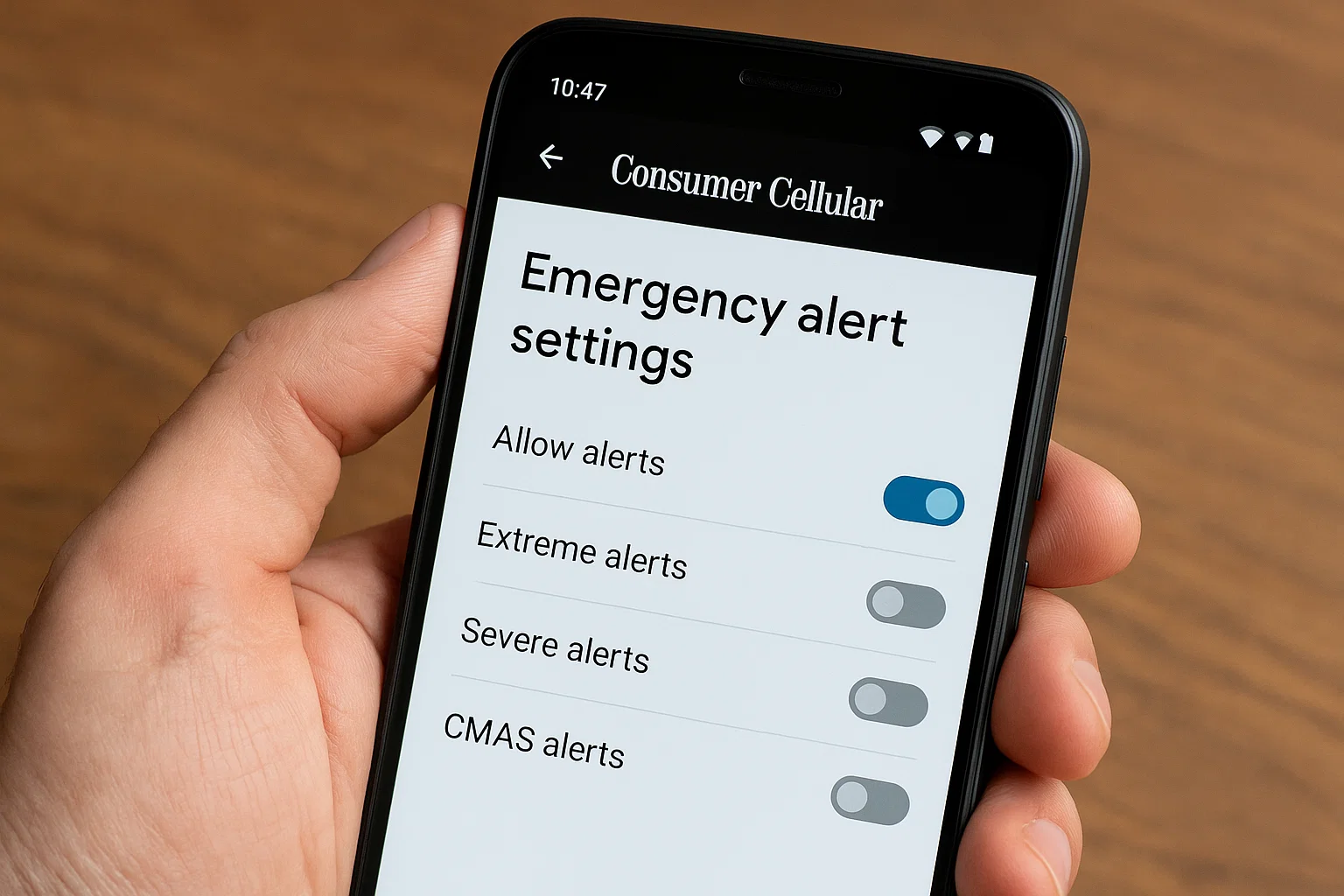
 If you’ve ever been startled by a loud emergency alert on your Consumer Cellular phone, you’re not alone. These alerts called CMAS or Commercial Mobile Alert System messages are designed to warn you about serious events like extreme weather, missing persons (AMBER Alerts), or national emergencies.
But here’s the thing: sometimes, they pop up too often or at the wrong time. So if you’re wondering how to remove CMAS from your Consumer Cellular phone, the quick answer is this:
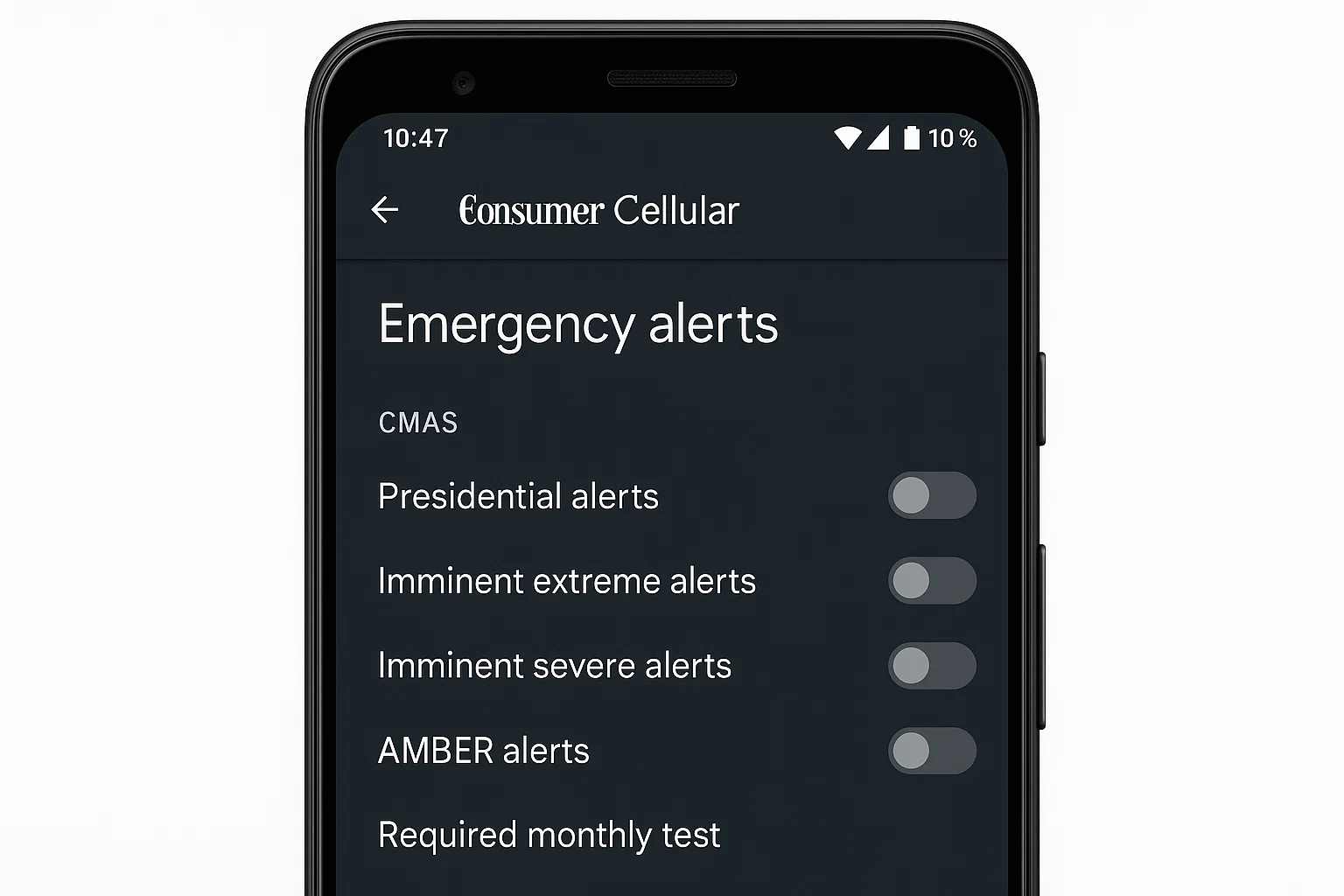
👉 Go to Settings → Notifications → Wireless Emergency Alerts → Turn off CMAS (or select the specific alert types you want to disable).
That’s it. In most cases, you can completely silence or remove these alerts through your phone’s settings no special app needed. Let’s walk through the steps clearly for both smartphones and flip phones, and talk about what CMAS actually does (and when you might want to keep it on).
What Is CMAS on the Front of a Consumer Cellular Phone?
CMAS stands for Commercial Mobile Alert System, also known as Wireless Emergency Alerts (WEA).
It’s a system built by the government to instantly notify users during emergencies. These can include:
- Presidential alerts: National-level warnings that cannot be turned off.
- Imminent threat alerts: Like tornadoes, floods, or other extreme weather.
- AMBER alerts: Missing child notifications.
- Public safety messages: Local emergencies or evacuations.
When you see “CMAS” or “Emergency Alert” flashing on your screen, it means your phone has received one of these messages.
The alert usually includes a loud siren-like tone, vibration, and a short message explaining what’s happening.
Why It Matters
CMAS alerts are part of a life-saving system, but they can become frustrating when they repeat too often, especially if:
- You live in an area with frequent test alerts.
- You use a flip phone that doesn’t easily silence them.
- You keep your phone near you while sleeping or working and get startled by the sound.
If that sounds like your situation, don’t worry you can still keep control of what alerts you receive.
How to Remove CMAS Alerts on a Consumer Cellular Smartphone
Let’s go step-by-step.
The process depends slightly on whether you have an Android or an iPhone, but both follow a similar idea adjusting the Wireless Emergency Alerts settings.
For Android (Consumer Cellular Smartphones)
Most Consumer Cellular phones use Android, such as Samsung, Motorola, or Nokia models. Here’s how to do it:
- Open your Settings app.
Look for the gear icon on your home screen or in the app drawer. - Tap on “Notifications” or “Apps & Notifications.”
Depending on your Android version, you may need to scroll to find it. - Find “Wireless Emergency Alerts” or “Advanced settings.”
You might see options like “Cell Broadcasts” or “Emergency Alerts.” - Toggle Off the CMAS Options.
You’ll see several alert categories:- Extreme threats
- Severe threats
- AMBER alerts
- Test alerts
Turn off the ones you don’t want.
- Confirm your choice.
That’s it! Once toggled off, your phone will no longer sound or display those alerts.
Note: Presidential alerts can’t be disabled by law, even if you turn off all others.
For iPhone (Consumer Cellular iOS Users)
If you’re using an iPhone under Consumer Cellular, follow these simple steps:
- Open the Settings app.
- Scroll down and select Notifications.
- Scroll all the way to the bottom.
- You’ll find switches for AMBER Alerts, Emergency Alerts, and Public Safety Alerts.
- Turn them off according to your preference.
Now your iPhone won’t buzz or beep for CMAS alerts unless it’s a presidential or nationwide warning.
How to Get Rid of Emergency Alerts on a Consumer Cellular Flip Phone
Flip phones are a bit different. Many people especially seniors use Consumer Cellular’s classic flip models.
These devices don’t have a full “Settings” menu like smartphones, but you can still manage alerts with a few key presses.
Here’s how:
- Press the Menu key.
- Go to Messaging → Emergency Alerts (or “Settings” inside Messages).
- Select CMAS or Alert Types.
- You’ll see options such as “Presidential,” “Severe,” and “AMBER.”
- Uncheck or turn off the alerts you don’t want.
- Save your changes.
After this, your flip phone will stop beeping or vibrating when those alerts arrive.
Tip: Some older flip phones label this as “Cell Broadcast” instead of “CMAS.” Look for that if you don’t see CMAS written anywhere.
How Do I Delete CMAS Messages on Consumer Cellular?
Turning off alerts prevents new ones from coming in but what about the ones already in your message inbox?
You can delete CMAS messages the same way you’d delete regular texts:
- Open the Messaging or Messages app.
- Tap and hold the CMAS message.
- Choose Delete or the trash bin icon.
- Confirm when prompted.
That will clear your screen. CMAS alerts are usually stored like text messages, but deleting them doesn’t affect your settings you’ll still get future alerts unless you disable them as shown earlier.
How to Turn Off Call Forwarding in Consumer Cellular
While we’re here, let’s touch on another common question Consumer Cellular users ask: How do I turn off call forwarding?
This isn’t directly related to CMAS, but it often appears together in your phone settings.
To turn off call forwarding on your Consumer Cellular phone:
For Android:
- Open the Phone app.
- Tap the three dots or More options in the corner.
- Go to Settings → Calling accounts → Call forwarding.
- You’ll see options like “Always forward,” “When busy,” or “When unanswered.”
- Tap each and choose Turn off.
For iPhone:
- Go to Settings → Phone → Call Forwarding.
- Toggle it off.
That’s it! Your calls will now come directly to your phone again.
Should You Remove CMAS Alerts Entirely? (Pros and Cons)
Before you decide to completely disable CMAS alerts, let’s be real about what it means.
Pros of Turning Off CMAS
- Peace and quiet no more late-night alarm tones.
- Less interruption during work or prayer.
- Stops repetitive test alerts.
Cons of Turning Off CMAS
- You might miss critical emergency alerts, like flash flood or severe weather warnings.
- You won’t get AMBER alerts that could help locate a missing child.
- In rare national emergencies, your phone won’t warn you (except for presidential alerts).
Balanced Option
Instead of removing CMAS entirely, you can keep only the important ones on for example, extreme threats and AMBER alerts and turn off the rest.
That way, you stay informed without the constant noise.
What If CMAS Alerts Keep Appearing After You Turn Them Off?
Some users say their phone keeps showing CMAS alerts even after disabling them.
If that happens to you, try these troubleshooting steps:
- Restart your phone.
A simple restart often refreshes the settings. - Check carrier updates.
Go to Settings → System → Software update and install any pending updates. - Reset network settings.
Go to Settings → System → Reset → Reset network settings.
This can fix bugs related to emergency services. - Contact Consumer Cellular support.
If the alerts persist, call (888) 345-5509 or visit their website’s live chat. They can remotely check your device profile.
How CMAS Differs from Other Alerts on Your Phone
Not all notifications are CMAS messages. Here’s a quick comparison:
| Type | What It Means | Can You Turn It Off? |
|---|---|---|
| CMAS / WEA | Government-issued emergency alerts | Yes (except Presidential) |
| App notifications | From apps like Facebook, YouTube, or WhatsApp | Yes |
| System notifications | Updates, low battery, SIM messages | Partially |
| Marketing texts | From network or stores | Yes (by replying STOP) |
So if you’re receiving something that looks like “Test Alert” or “Extreme Weather Warning,” it’s most likely CMAS. But if it’s a random promo or network offer, that’s not CMAS you can block or unsubscribe normally.
Why Consumer Cellular Phones Are Popular Among Seniors
This part might surprise you: Consumer Cellular is known for user-friendly, senior-friendly phones. That’s why CMAS alerts can feel extra disruptive especially for people who aren’t used to frequent phone pop-ups.
A few reasons older adults prefer Consumer Cellular:
- Simple menus
- Affordable plans
- Reliable coverage on AT&T and T-Mobile networks
- Excellent customer support
If you’re helping a parent or grandparent manage their phone, walking them through disabling CMAS can make their experience much smoother (and quieter).
Can You Remove CMAS Permanently?
Technically, you can’t remove CMAS permanently from your device because it’s part of your phone’s emergency software.
But you can disable the sound, vibration, and display notifications completely making it feel like they’re gone.
You can also disable them via carrier SIM settings on certain models:
- Go to SIM Manager → Cell Broadcast Settings.
- Toggle off “Emergency Alerts” or “CMAS messages.”
- Restart your phone.
This will effectively “remove” CMAS from daily use while keeping it in the system background.
How to Stop CMAS Alerts During the Night
If you want peace while sleeping without permanently turning off alerts, here’s a smart trick:
Use “Do Not Disturb” Mode
- Go to Settings → Sound & vibration → Do Not Disturb.
- Choose a schedule (like 10 PM to 7 AM).
- Allow calls from specific contacts only (if needed).
During this time, CMAS alerts are muted, but your phone can still receive them silently.
This method works best if you still want the alert logged but not loudly announced at midnight.
Common Mistakes to Avoid When Disabling CMAS
- Turning off the wrong settings.
CMAS isn’t the same as app notifications make sure you’re adjusting Wireless Emergency Alerts. - Ignoring updates.
After updates, some phones reset alert preferences. Always recheck after a system upgrade. - Not testing.
After turning off alerts, send yourself a test message (if available under “Test Alerts”) to confirm they’re muted.
Troubleshooting: CMAS Keeps Showing on the Home Screen
If “CMAS” is stuck on your phone’s home screen, here’s what to do:
- Go to Settings → Apps → Messages → Storage.
- Tap Clear cache and then Clear data.
- Restart your phone.
- Open Messages again it should now be gone.
This happens when the message app keeps the alert banner cached even after deletion. Clearing cache resets it.
Quick Recap
Here’s everything in one glance:
| Goal | Where to Go | Action |
|---|---|---|
| Remove CMAS alerts | Settings → Notifications → Wireless Emergency Alerts | Toggle Off |
| Delete old CMAS messages | Messaging app | Delete manually |
| Stop alerts on flip phone | Menu → Messaging → Emergency Alerts | Disable manually |
| Stop alerts at night | Do Not Disturb Mode | Schedule silence |
| Turn off call forwarding | Phone Settings → Call Forwarding | Turn Off |
Final Thoughts
Honestly, CMAS is useful but it’s not for everyone. If the noise and constant alerts are driving you crazy, you can safely turn them off while keeping your phone functional and peaceful.
Just remember, presidential alerts can’t be removed, and it’s wise to keep at least one type of emergency alert active especially if you live in an area prone to storms or earthquakes.
But if your goal is simply to remove CMAS from your Consumer Cellular phone for everyday comfort, the steps above are more than enough.
So go ahead take control of your alerts, enjoy some quiet, and keep your phone exactly how you like it.

Alexandra Smith: All things tech, News, Social Media Guide, and gaming expert. Bringing you the latest insights and updates on Mobiledady.com